Customer Groups and Customer Maintenance
Customers can be set up with special pricing and Accounts Receivable (A/R) functionality. Customers are to be assigned to a Customer Group with specific pricing rules, and A/R charges can be paid at the till. For details on processing A/R payments, refer to the document Sales Invoices and Customer A/R at the Till.
Customer Groups
All customers must belong to a Customer Group, which defines pricing rules and discounts. For example, you might create a ‘Staff’ group to apply an automatic staff discount.
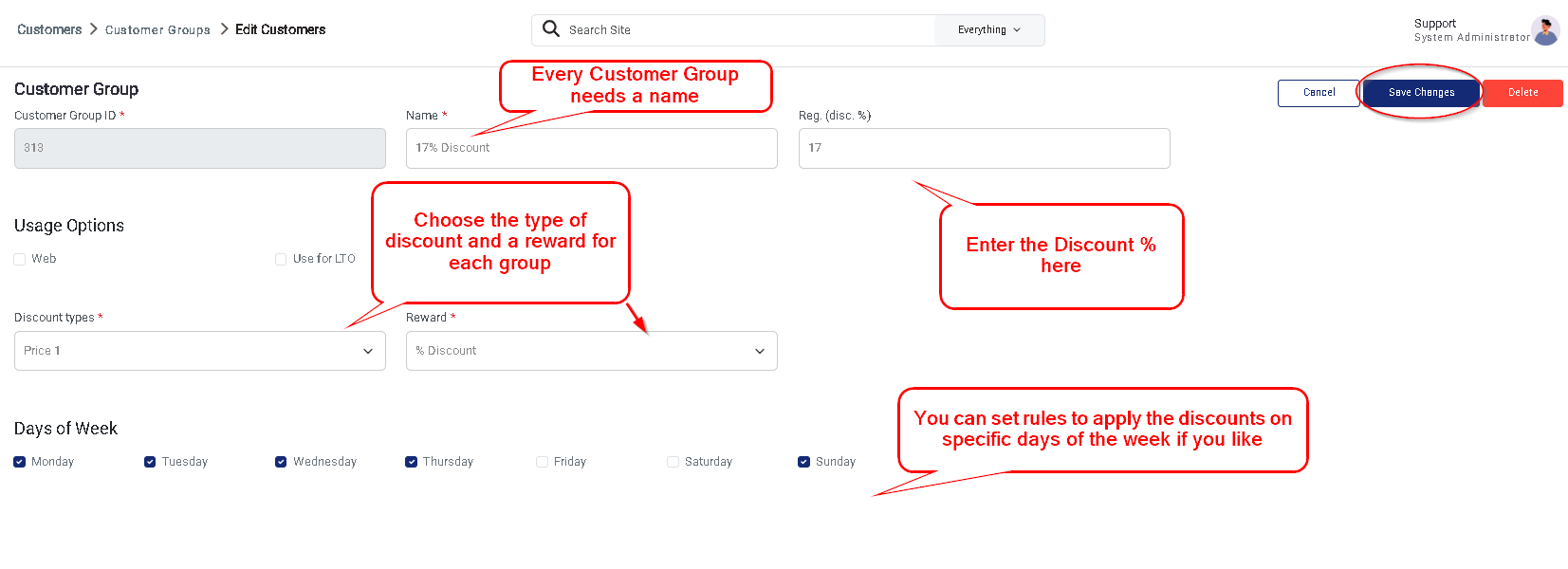
To create or edit a Customer Group
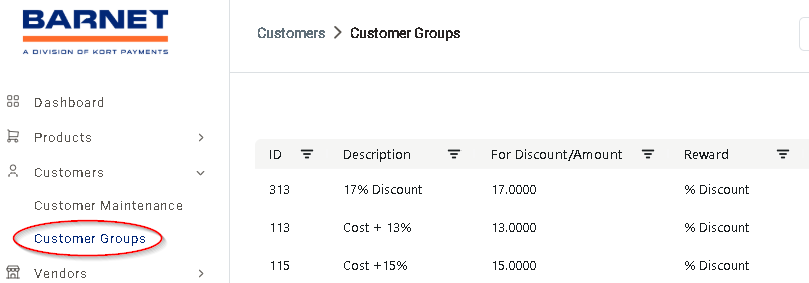
- Go to: Customers > Customer Groups.
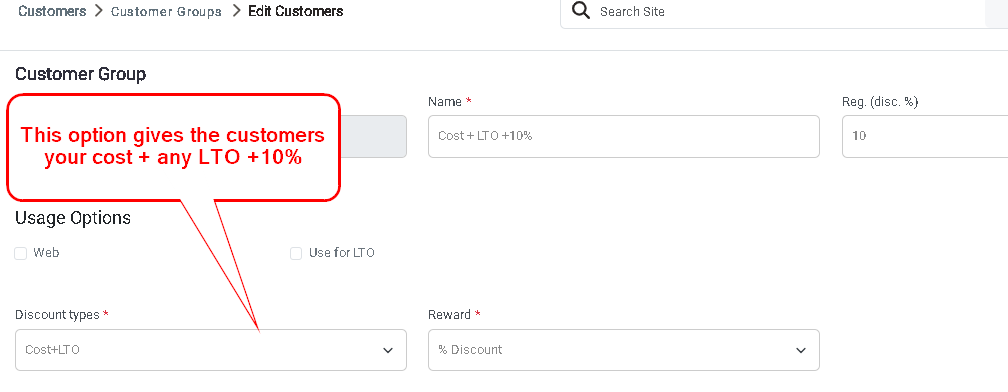
- Assign a Group Name and select a Reward Option (usually a Discount %).
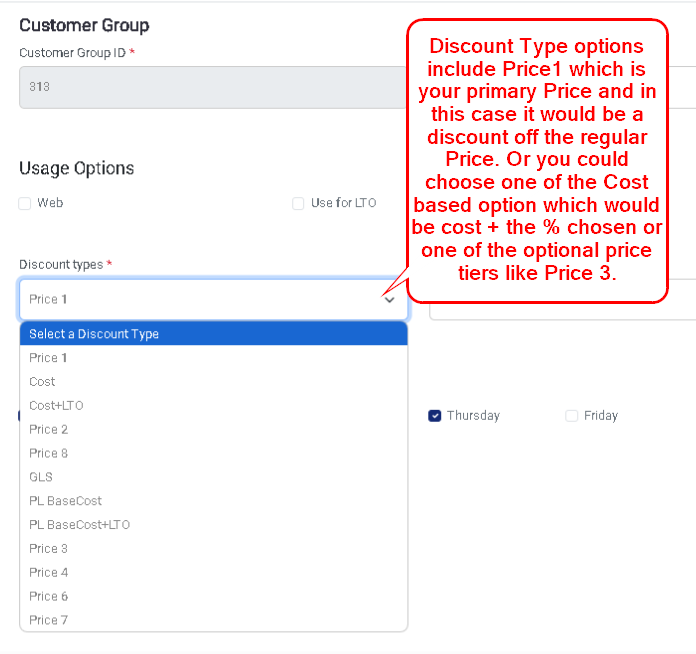
- If a discount applies, select the Discount Type (e.g., Price 1, Cost, etc.).
- Optionally, set the discount to apply on specific days of the week.
Discount Type Overview
- Price 1: Shelf price (default). A 10% discount means 10% off regular retail.
- Cost: Applies a markup (e.g., Cost + 10%) over product cost.
- Price 2: Reserved for “2 for” pricing.
- Price 8: Often used for 3rd party delivery pricing.
- Cost + LTO or PL (Price List) Cost + LTO: Options for specific pricing strategies.
Each product can have up to 8 different price points in Product Maintenance, which you can use to define Customer Group pricing.
Surcharge Option
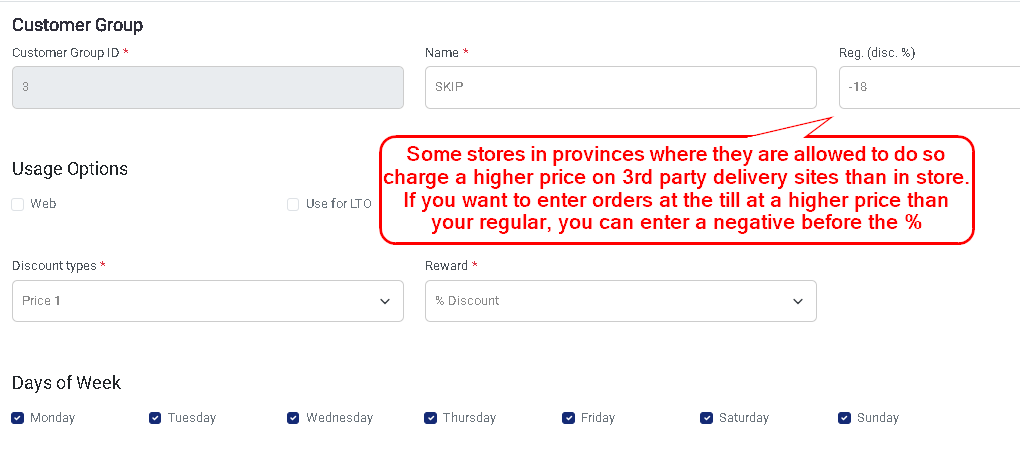
If you want to charge customers more than the regular shelf price, you can apply a negative discount (e.g., -18%). This is often used for groups like ‘Skip’ or 3rd party delivery customers who are charged higher than in-store pricing.
Customer Maintenance
To create or manage customers:
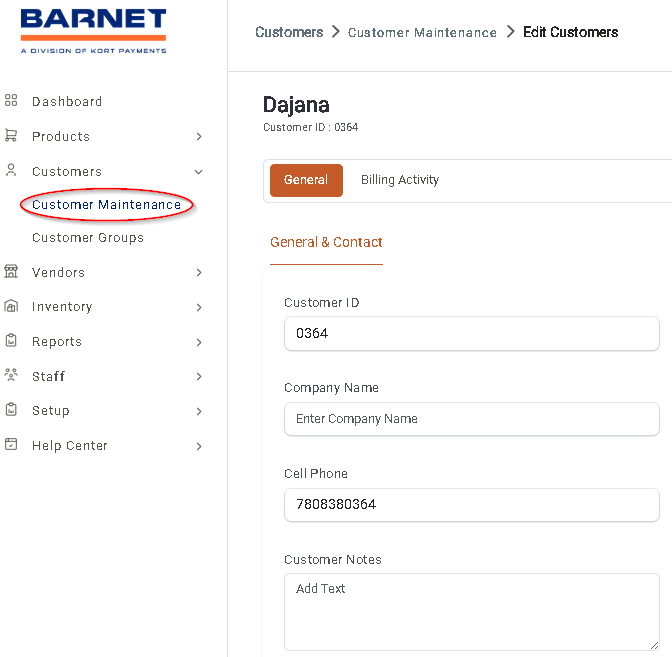
- Go to: Customers > Customer Maintenance.
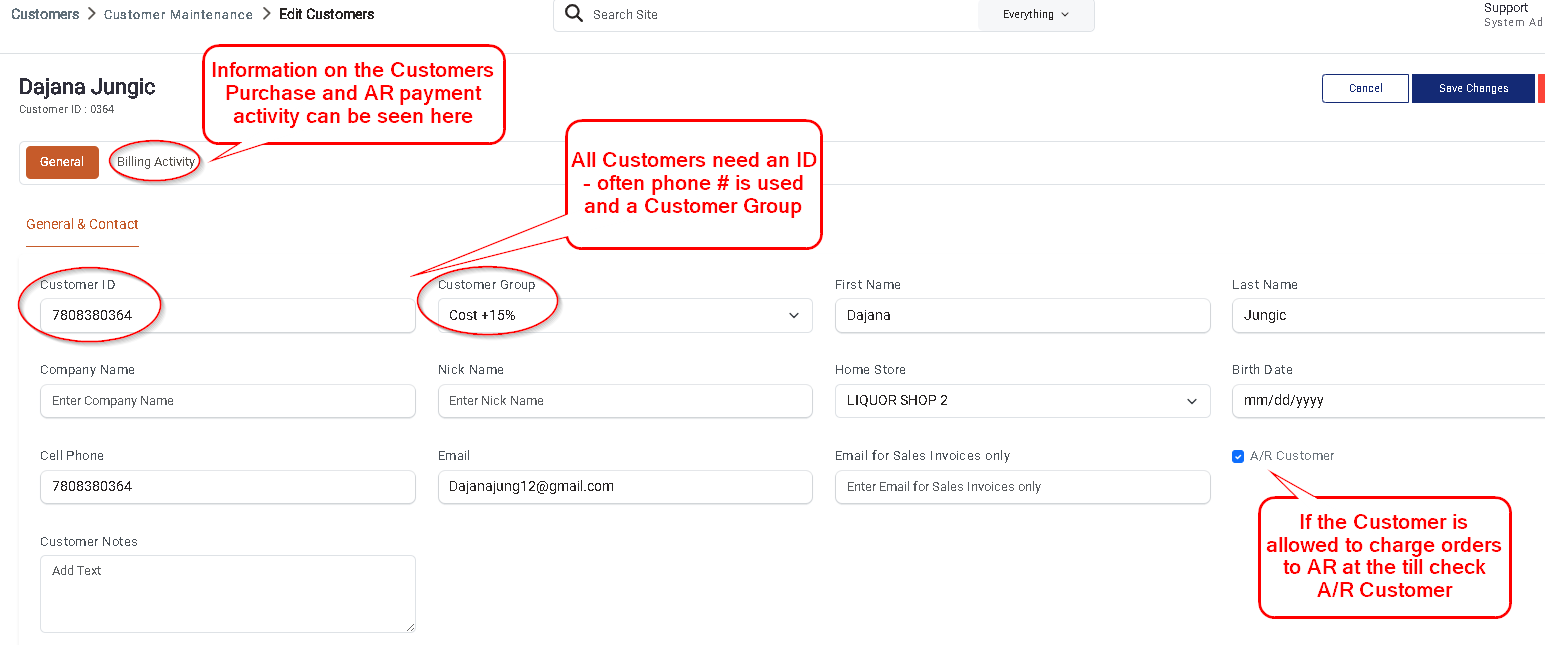
All customers must have:
- A Customer ID (usually their phone number),
- A Customer Group, and
- A Customer Name.
If you want a customer to be able to charge purchases to an A/R account at the till, check the A/R Customer box.