Manually Entering Receiving Invoices
For vendors whose invoices cannot be imported—and for orders not created through Barnet—you can manually enter receiving invoices directly into the system.
Navigate to Receiving Invoices
Go to Inventory > Receiving Invoices, then click Add Receiving Invoice in the top right corner.

Select the Vendor
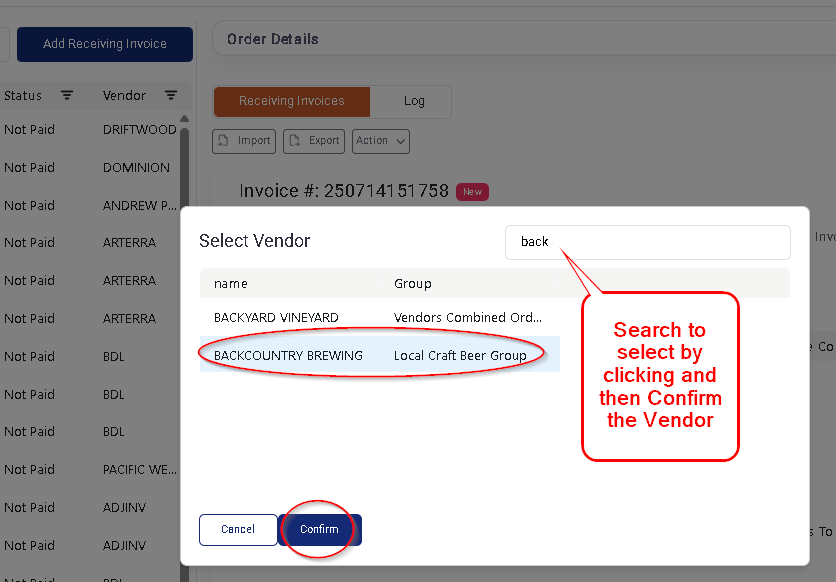
- Search or scroll to find the vendor.
- Click the vendor name, then click Confirm.
Add Invoice Details
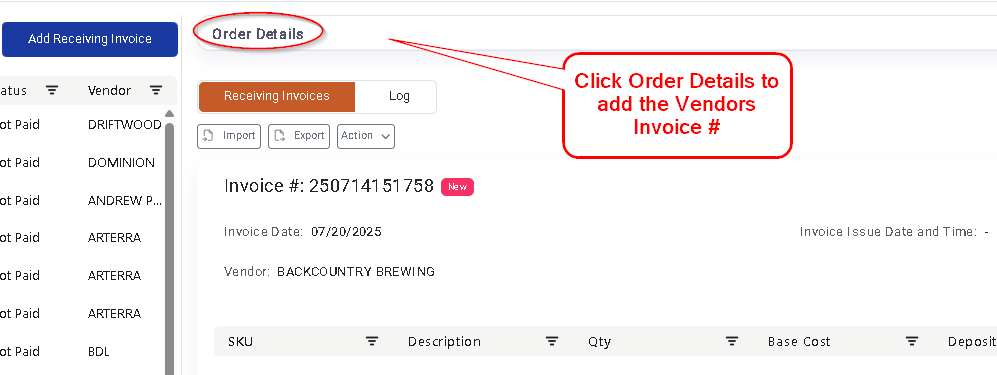
- Click Order Details at the top of the invoice.
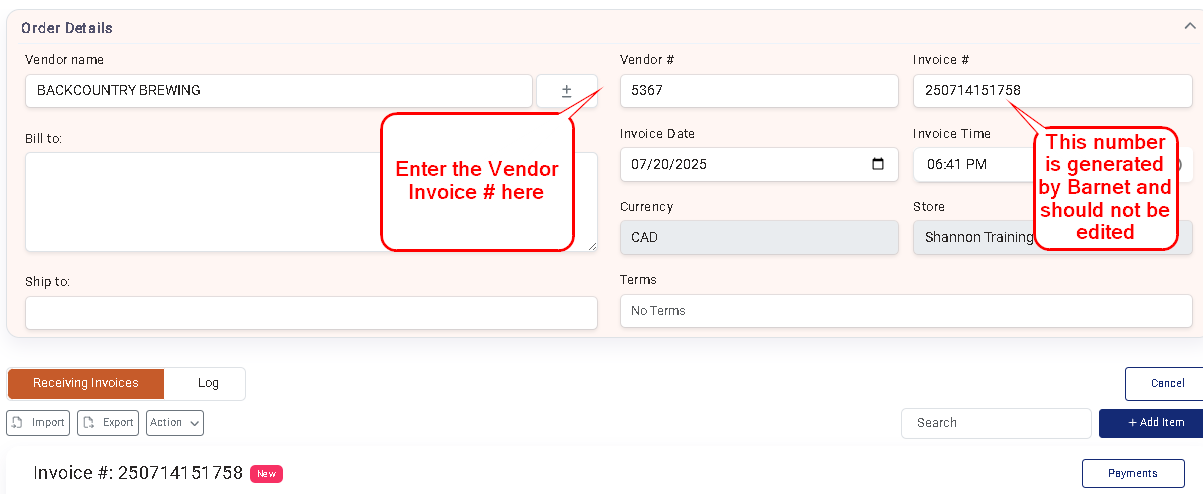
- Do not edit the Barnet Receiving number.
- Instead, enter the vendor's invoice number in the Vendor # field.
Both numbers will be searchable and visible in reports.
- Click Order Details again to collapse the section when you're done.
Add Items to the Invoice
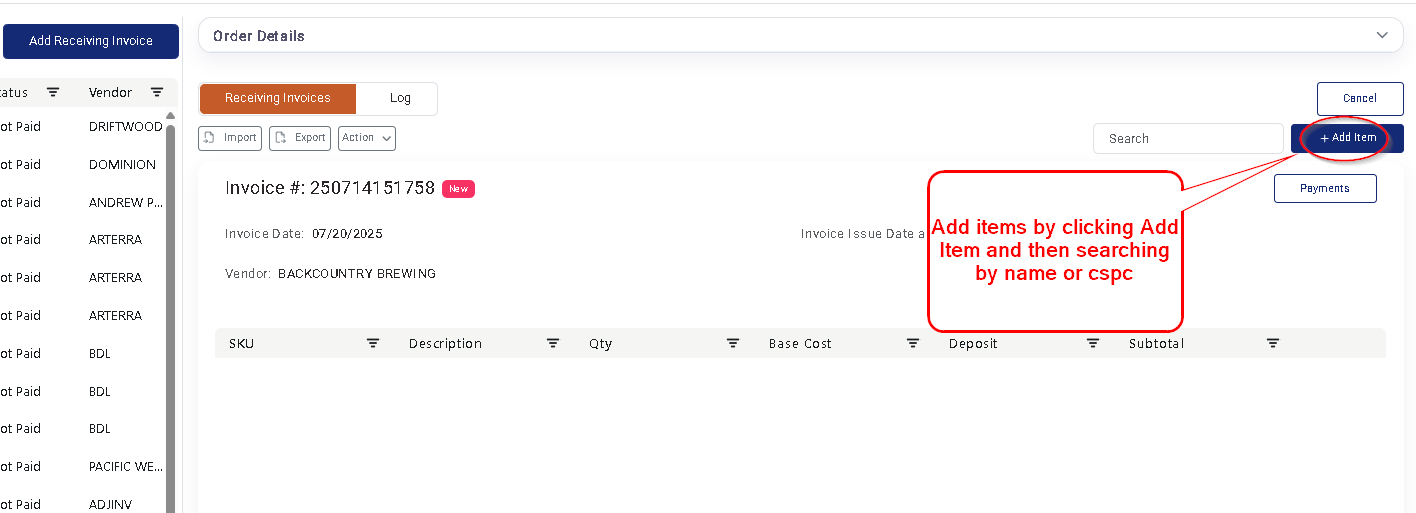
- Click Add Item.
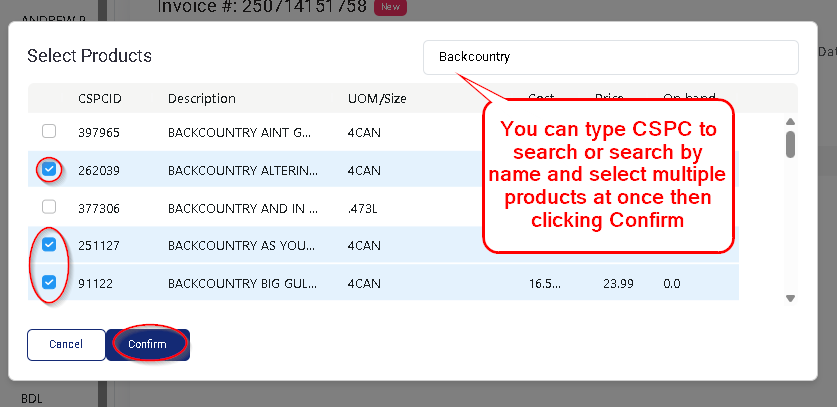
- Search for products by name or CSPC.
- While CSPC is typically preferred for accuracy, name search may be faster for selecting multiple items.
Enter Quantities and Costs
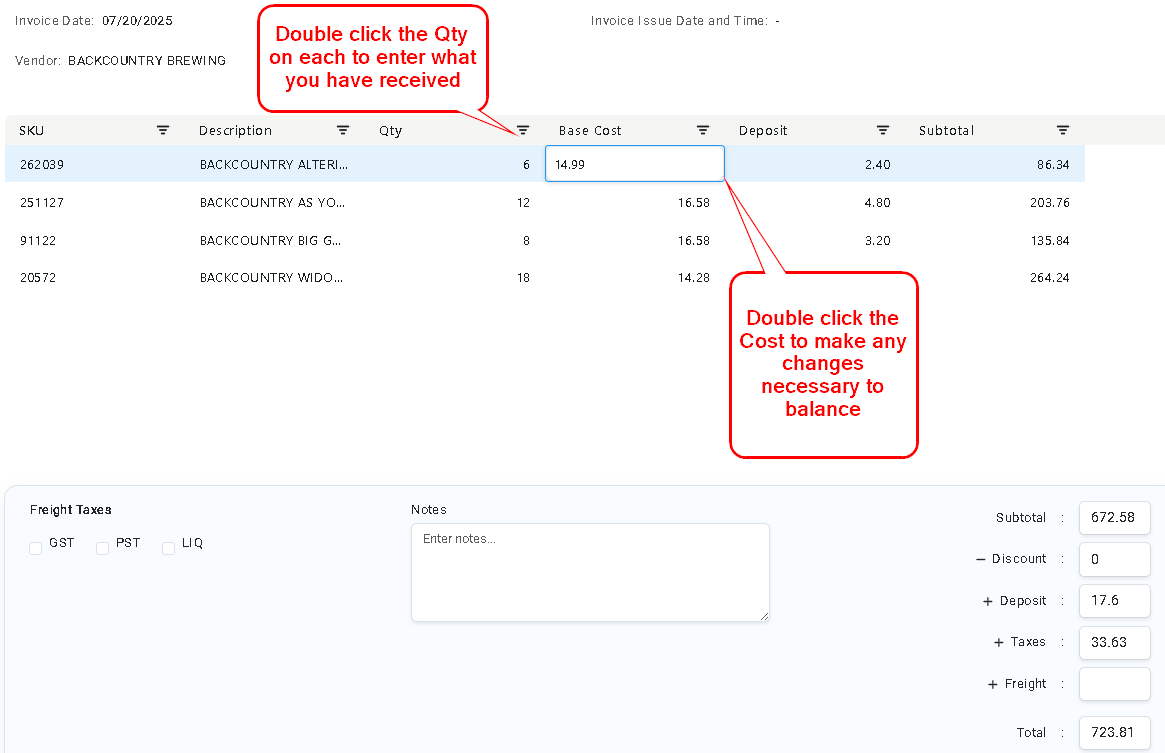
- Enter the Qty received.
- Adjust Costs if needed until the invoice total balances.
Save and Apply Costs
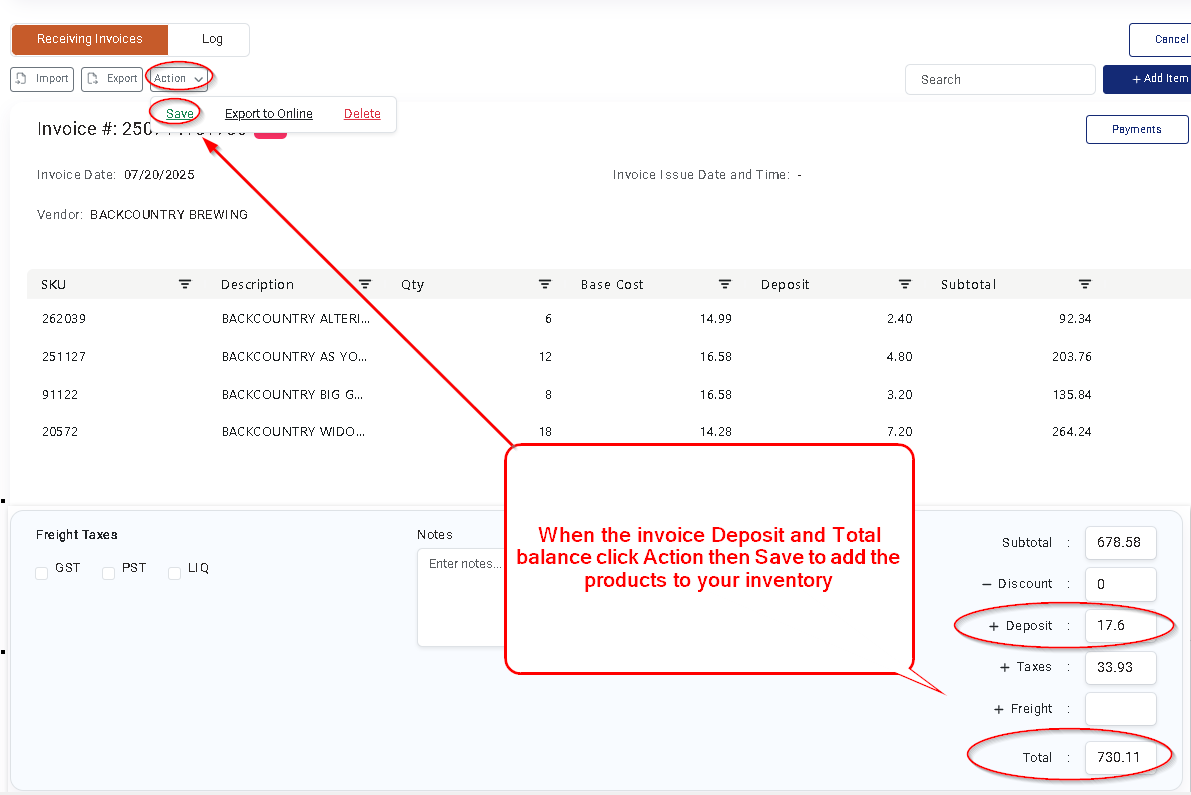
- Once the invoice is balanced, click Action > Save.
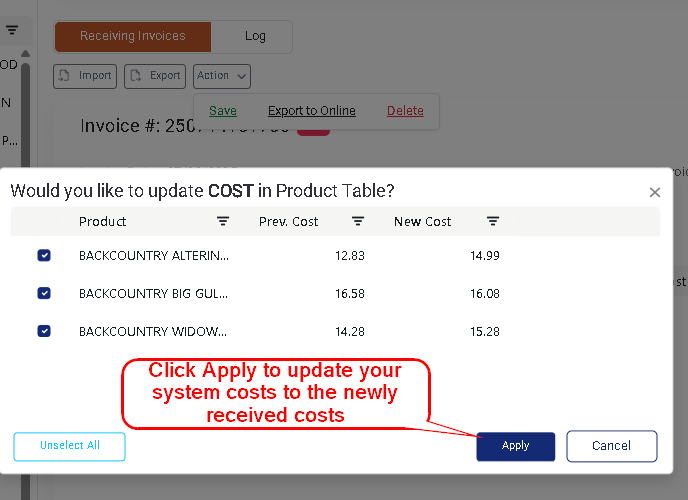
- You will be prompted to confirm whether to update system costs with the newly received costs.
- Best Practice: Click Apply to update your costs. This ensures your product pricing reflects the actual cost you’ve paid.