Delisting SKUs
Purpose
Delist SKUs you no longer plan to order. Delisting hides them from Product Maintenance once their on-hand quantity reaches zero. Delisted SKUs:
- Do not appear on the Re-Order Guide.
- Do not appear in product searches at the till.
Filtering Delisted SKUs
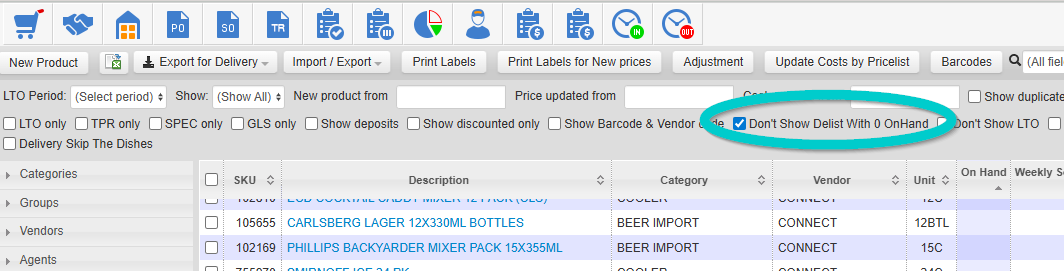
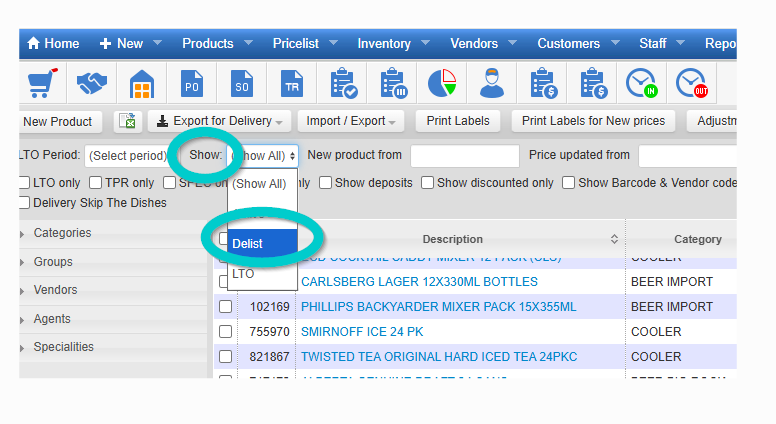
- To hide delisted SKUs with zero on-hand, select the filter “Don’t Show Delist with 0 OnHand.”
- To view only delisted SKUs, set the Show filter to Delist.
Delisting Individual SKUs
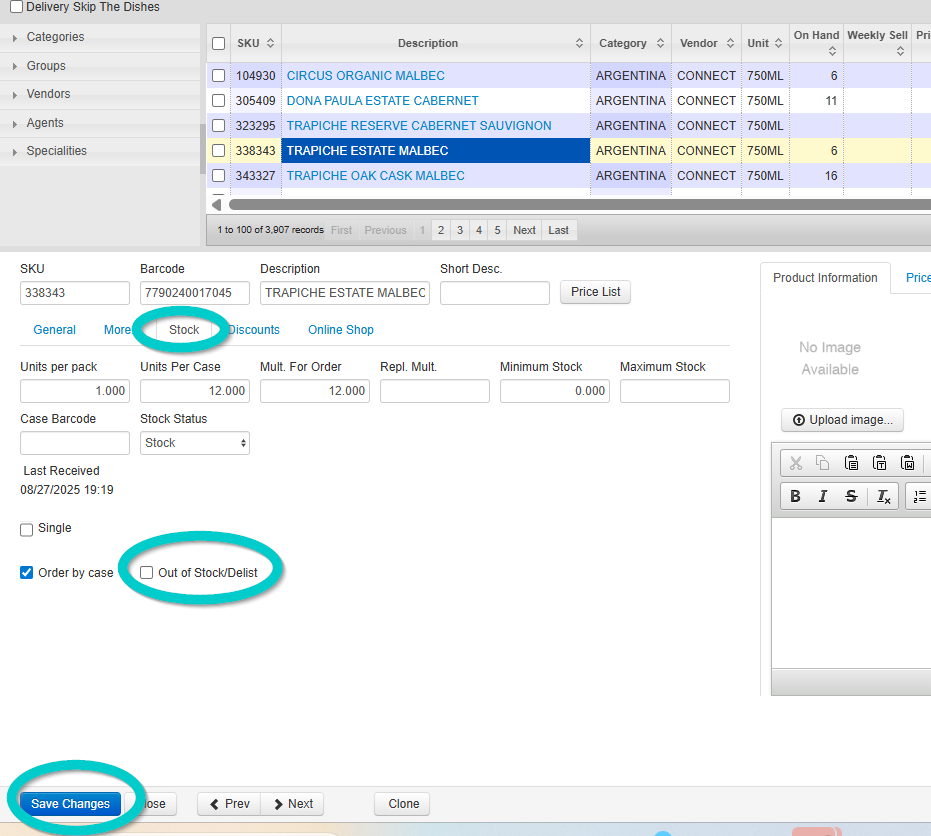
- Go to the Stock tab on the SKU’s Product Maintenance page.
- Check the Out of Stock/Delist box.
- Click Save.
Delisting Multiple SKUs with “Apply All”
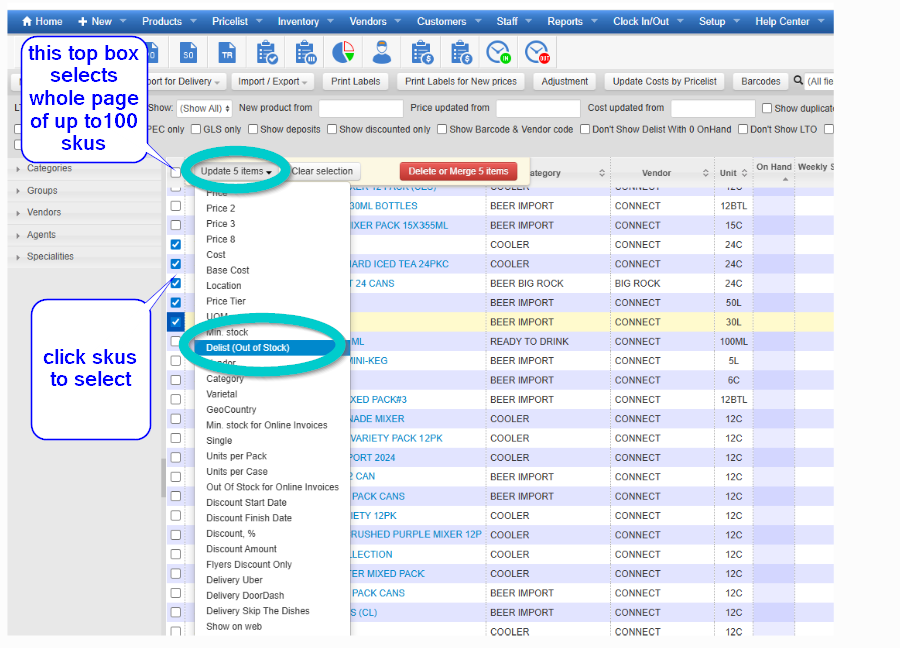
- Sort your database (e.g., by on-hand quantity or another criterion).
- Select the SKUs you want to delist:
- Check the box to the left of each SKU, or
- Select all items on a page using the header row checkbox.
- Uncheck any SKUs you don’t want to delist.
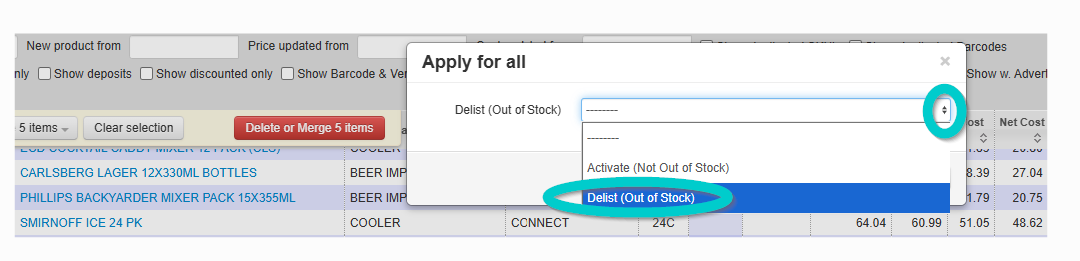
- Click Update Items and choose Delist (Out of Stock).
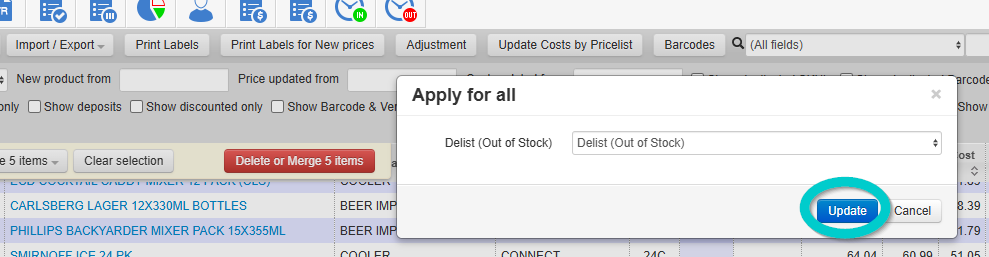
- In the Apply for All pop-up, select your preferred option.
- Click Update to complete the process.