Product Based Discounts
Portal Product-Based Discounts
Product-based discounts can be created directly in or through the Discount Scheduler. Each method has different use cases and capabilities.
Discount Rules & System Settings
- By default, most new systems are configured not to combine multiple discounts on the same product.
- When multiple discounts exist, the system will automatically apply the better discount for the customer.
- If you would like to change how discount stacking works, please contact Barnet Support.
Creating a Discount in Product Maintenance
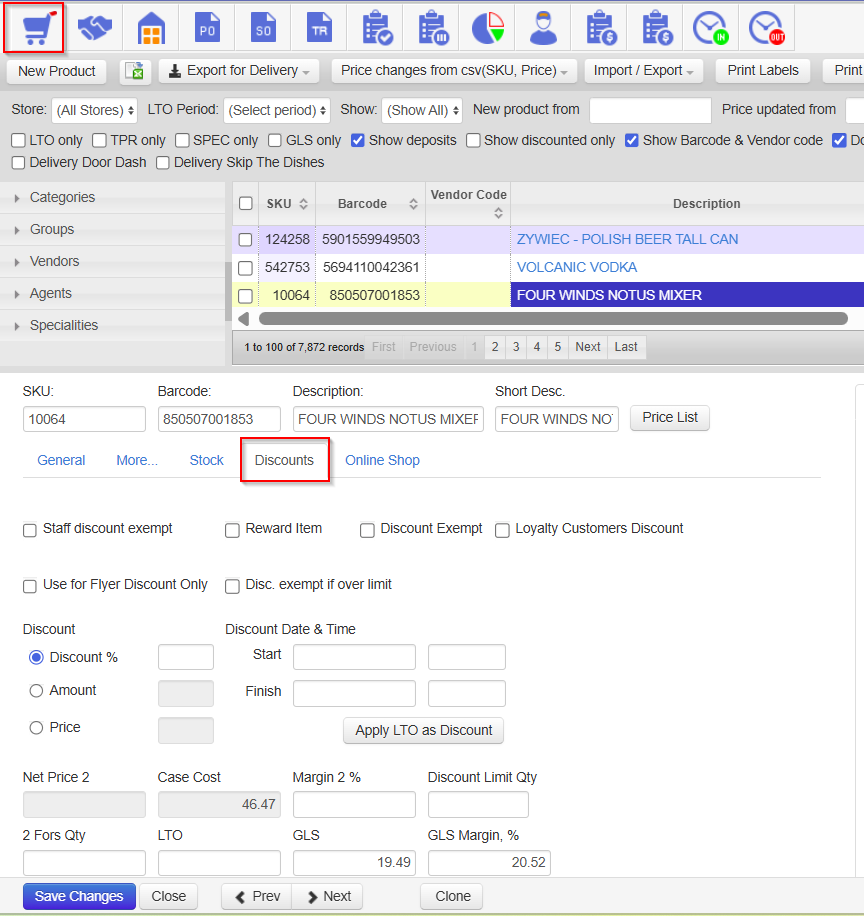
- Go to Product Maintenance.
- Select the product you want to discount.
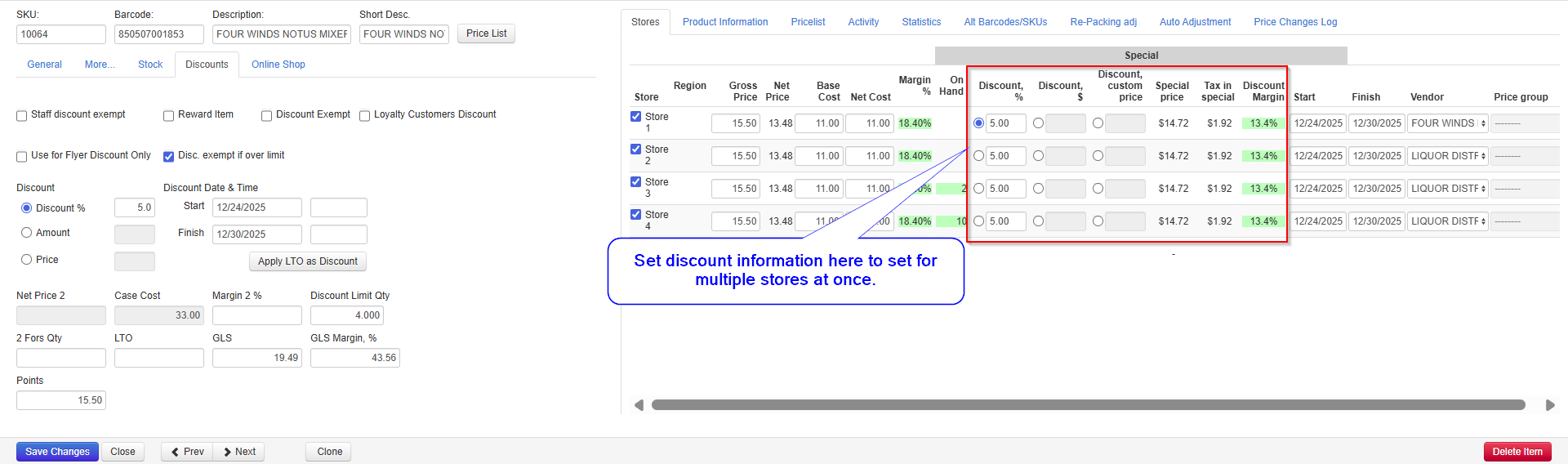
- Open the Discount tab.
Discount Types
You can apply one of the following discount types:
- Percentage-based discountReduces the price by the percentage entered.
- Amount-based discountReduces the price by a fixed dollar amount.
- Price-based discountSets the product to a specific sale price.
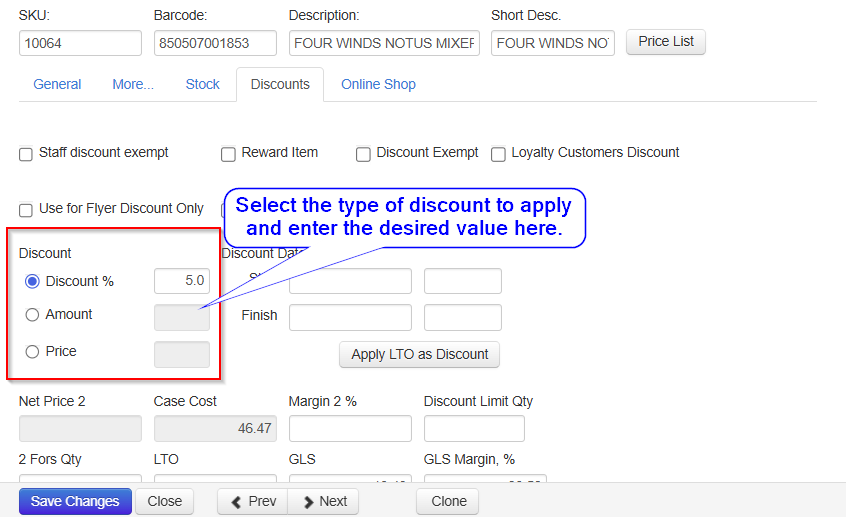
Date & Time Settings (Optional)
- Start Date / Finish Date
- If entered, the discount will only apply during the selected date range.
- If left blank, the discount will remain active until manually removed.
- Time
- If left blank, the discount defaults to midnight to midnight on the selected dates.
- If specific times are entered, the discount will only apply during that time window.
Multi-Store (Head Office) Portals
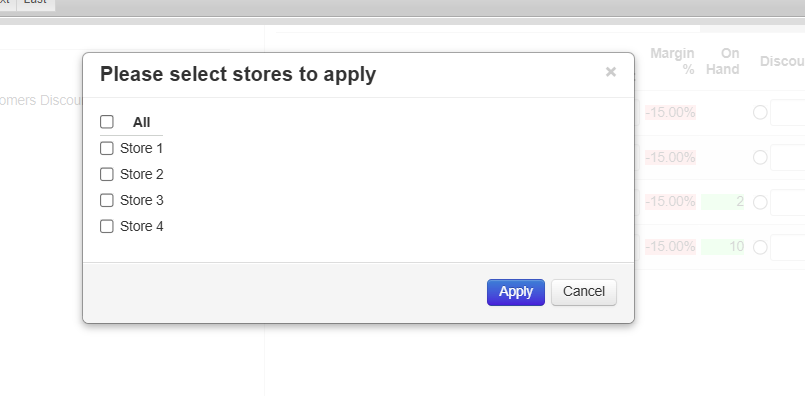
- If you are using Head Office with multiple stores, saving the discount will prompt you to:
- Apply the discount to a single store, or
- Apply it to multiple stores at once.
Confirming the Discount
- After saving, a Sale flag will appear on the product in Product Maintenance, confirming the discount is active.

Bulk Discount Updates
Discounts can also be applied in bulk using:
- Apply All, or
- Product Maintenance Imports
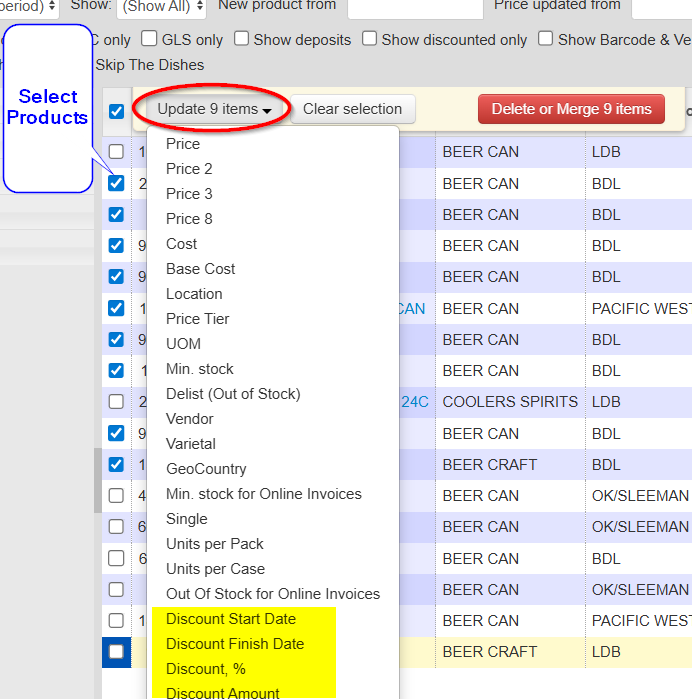
Apply All in Product Maintenance
- Select the products you want to update.
- Click Update Items.
- Choose the field to update (discount type, amount, dates, etc.).
- Follow the prompts to complete the update.