Using the Product Maintenance Import Tool in Barnet Portal Part 2/2
Using the Product Maintenance Import Tool in Barnet Portal
If “Enable Undo” is not available, contact Barnet Support to enable it for your account.
- Post-Import Actions
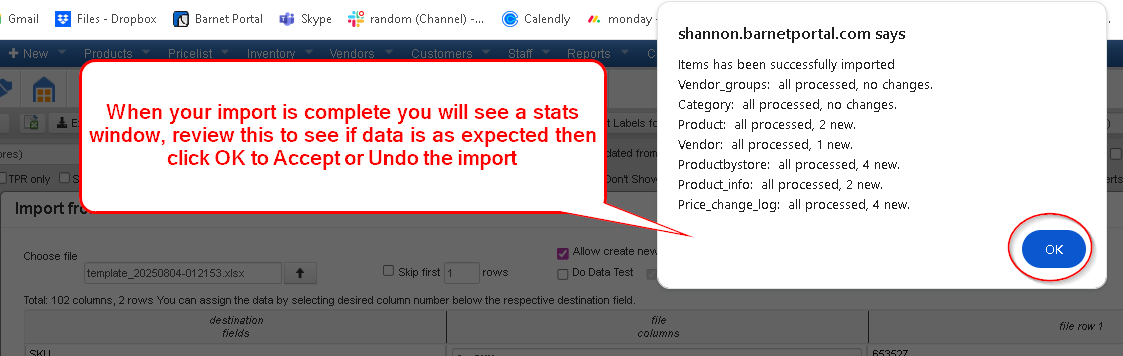
- After import, you'll see a confirmation window.
- Click OK.
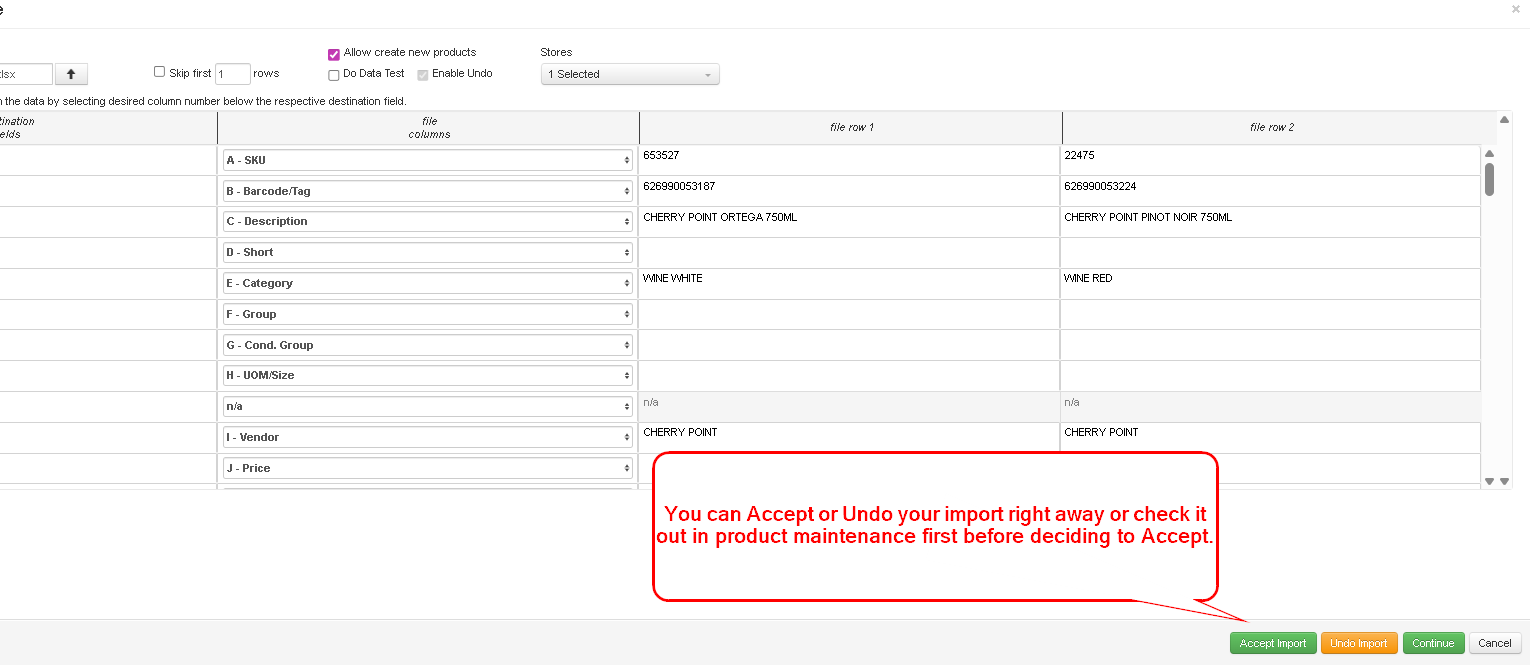
- Then either Accept or Undo the import immediately or review the products first.
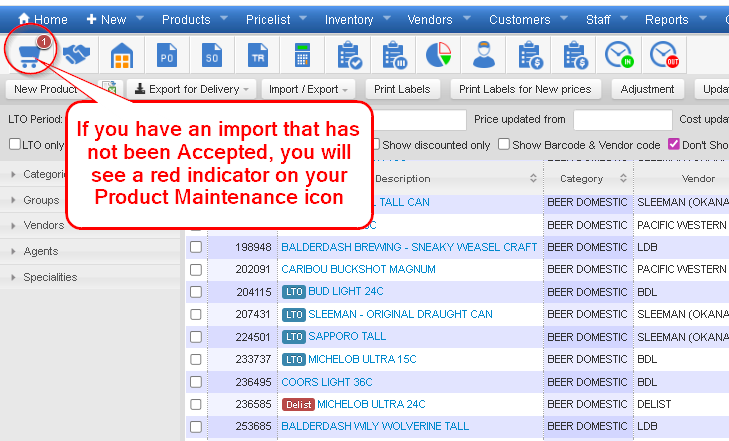
Pending Import Indicator
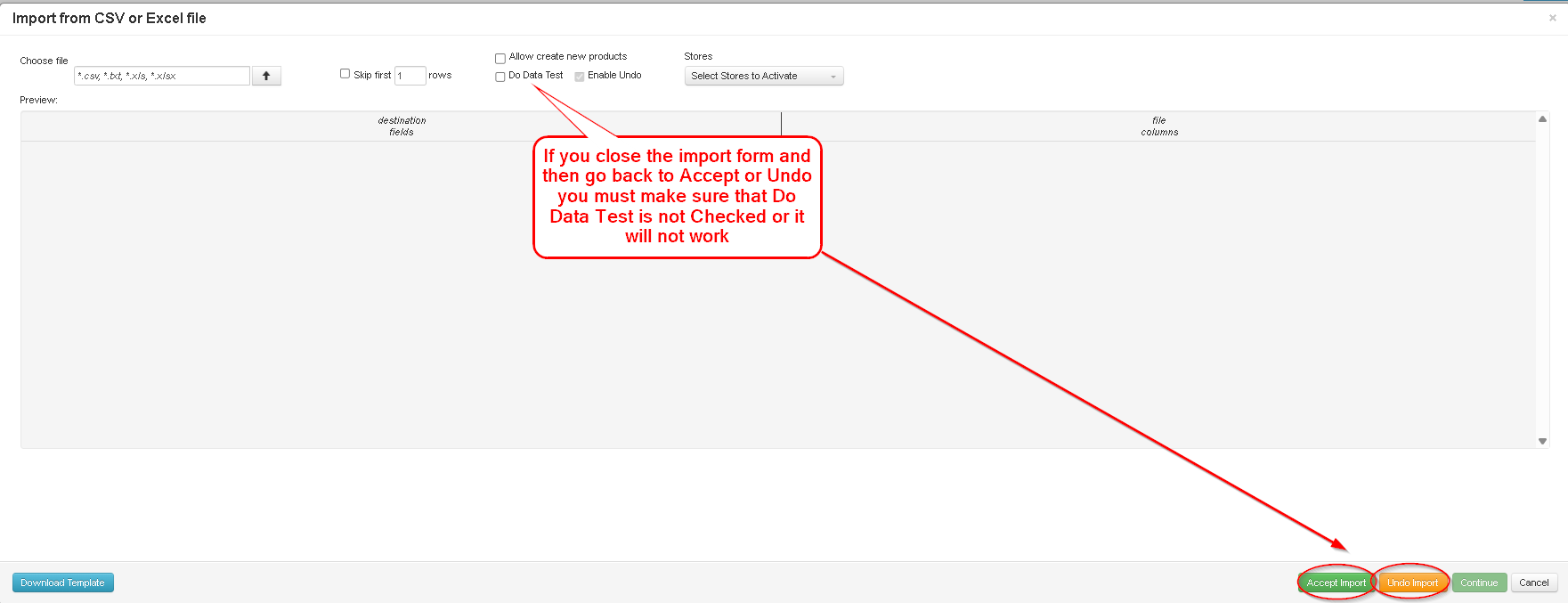
If you close the import window without accepting or undoing:
- You’ll see a red dot on the Product Maintenance icon.
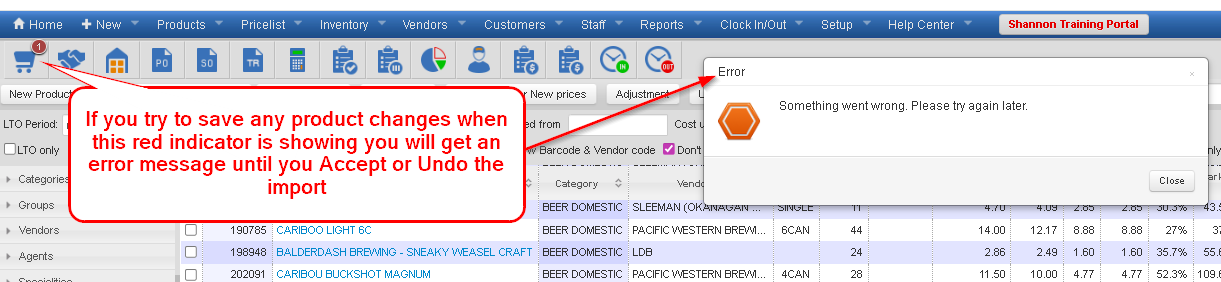
- You cannot edit any products until the import is finalized.
- Attempting to do so will trigger a “Something Went Wrong” error.
To finalize:
- Reopen the Import Tool
- Uncheck Do Data Test
- Click Accept or Undo, then click OK
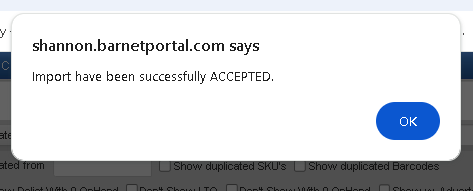
If you click Accept, close the confirmation popup by selecting OK once the import is successfully accepted.
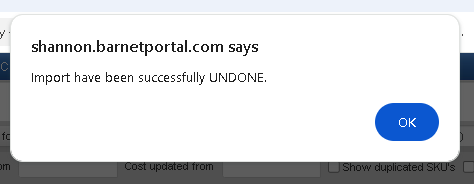
If you click Undo, close the confirmation popup by selecting OK once the import is successfully undone.
Tips & Notes
- You don’t need to fill in every field when creating products—some fields auto-populate. Example: Adding a Category also links it to a default Category Group and Cond. Group.
- When importing new Categories or Vendors, follow up in Category/Vendor Maintenance to configure settings. Use Apply All to apply settings efficiently.
- For stores with tax-included pricing, contact Barnet Support before importing price changes.
- Attribute values (e.g., Category, Size, Country) must match your system exactly or new entries will be created.
- If Enable Undo is missing, contact Barnet Support to have it enabled for your account.
- Imports need to be Accepted or Undone by the user who was logged in and did the import.