Barnet Merrco Integration Card Not Present
Card Not Present (Manual Entry) Payment Instructions
Barnet - Merrco integration
*NOTE – These steps are for A80 and A920 pin pads **A35 is not supported for card not present
Follow these steps to process a credit card transaction when the physical card is not present.
Ring in the Transaction
- Start by entering the transaction as usual in the Barnet POS system.
Access the PayFacto App
- On the PinPad main screen, select the PayFacto app.
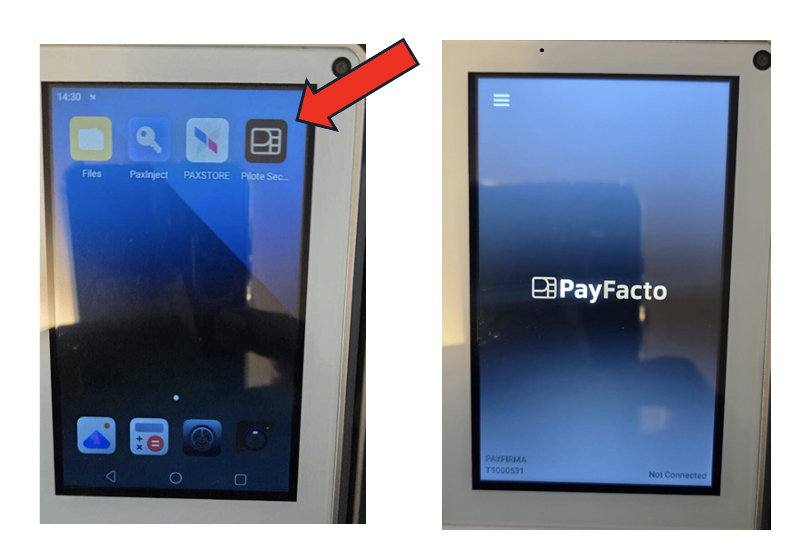
Switch to Standalone Mode
- Once the PayFacto app is open:
- Select Options.
- Scroll to the bottom and select Switch to Standalone.
- You will now see a screen that allows manual entry of the transaction total.
- Enter the total amount and select OK.
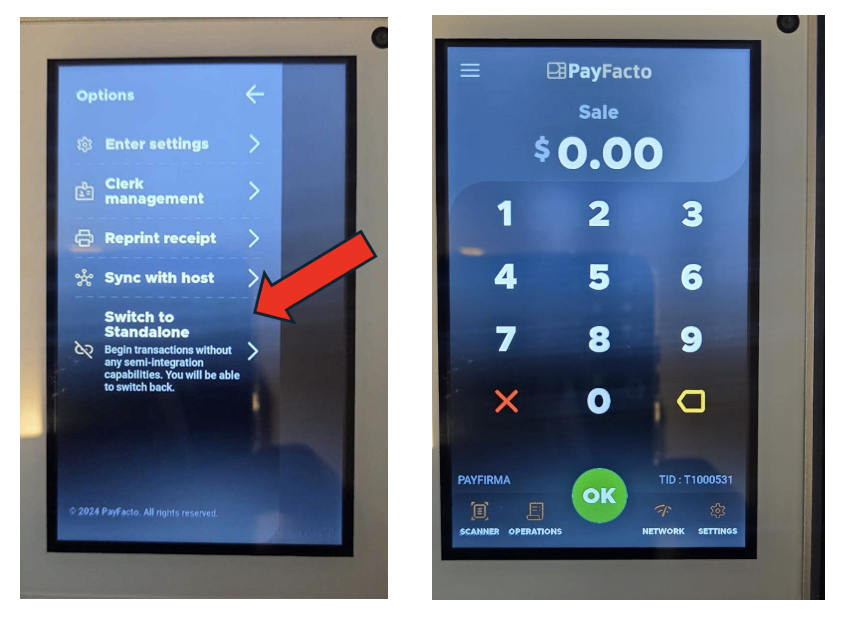
Manually Enter Card Information
- Follow the prompts to manually enter the credit card details that you have on file.
- Once the card is processed and the transaction is approved, continue to the next step.
Record the Payment in Barnet POS
- Return to the Barnet POS.
- Navigate to your Preset or Functions screen.
- Select the appropriate payment settlement type that corresponds to the card that was processed through PayFacto.
Exit Standalone Mode
- After the transaction is complete, go back to the PinPad:
- Reopen Options in the PayFacto app.
- Disable Standalone Mode to return the PinPad to its normal transaction flow.
✅ Important Reminders
- Always ensure that Standalone Mode is turned off after completing a card not present transaction.
- Confirm that the amount entered on the PinPad matches the amount rung into Barnet.
- Be cautious with cardholder information—only use card details with proper authorization.
- When a card is entered manually it becomes very difficult to refund, please be cautious when using this method.