POS ScreensDesigner Manual Pub LRS
Barnet POS – Screens Designer
- Enter Screens Setup
- Select the Main Bar or Main Food screen. By default, Main Bar is shown.
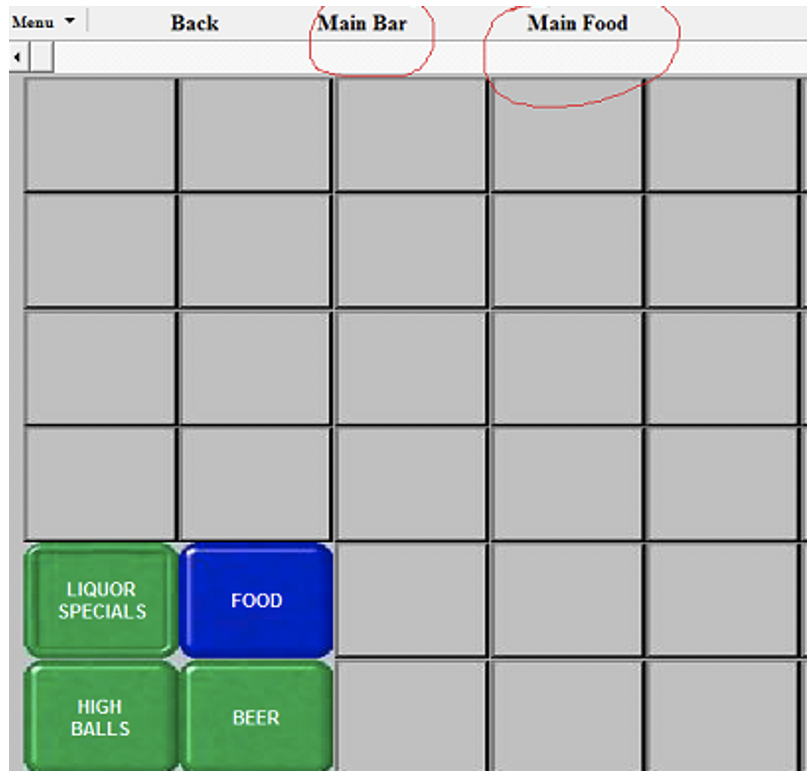
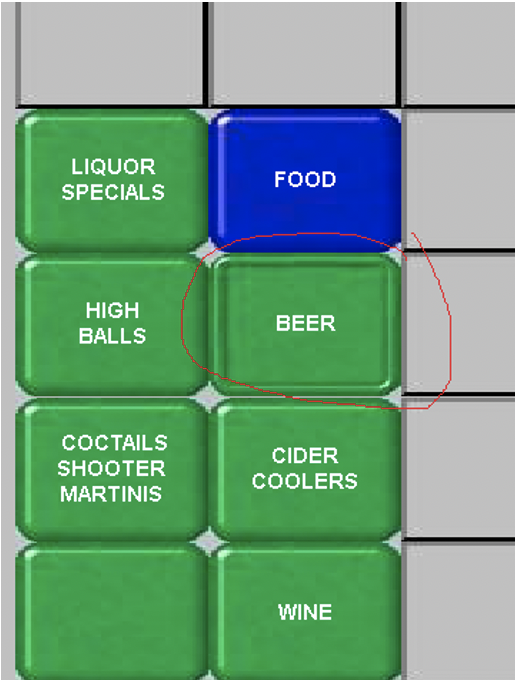
- If you want to add new button under Beer screen, double click on the Beer button as seen below.
- Select the button you want to use. On the right Properties panel, click on Select by the product code box.
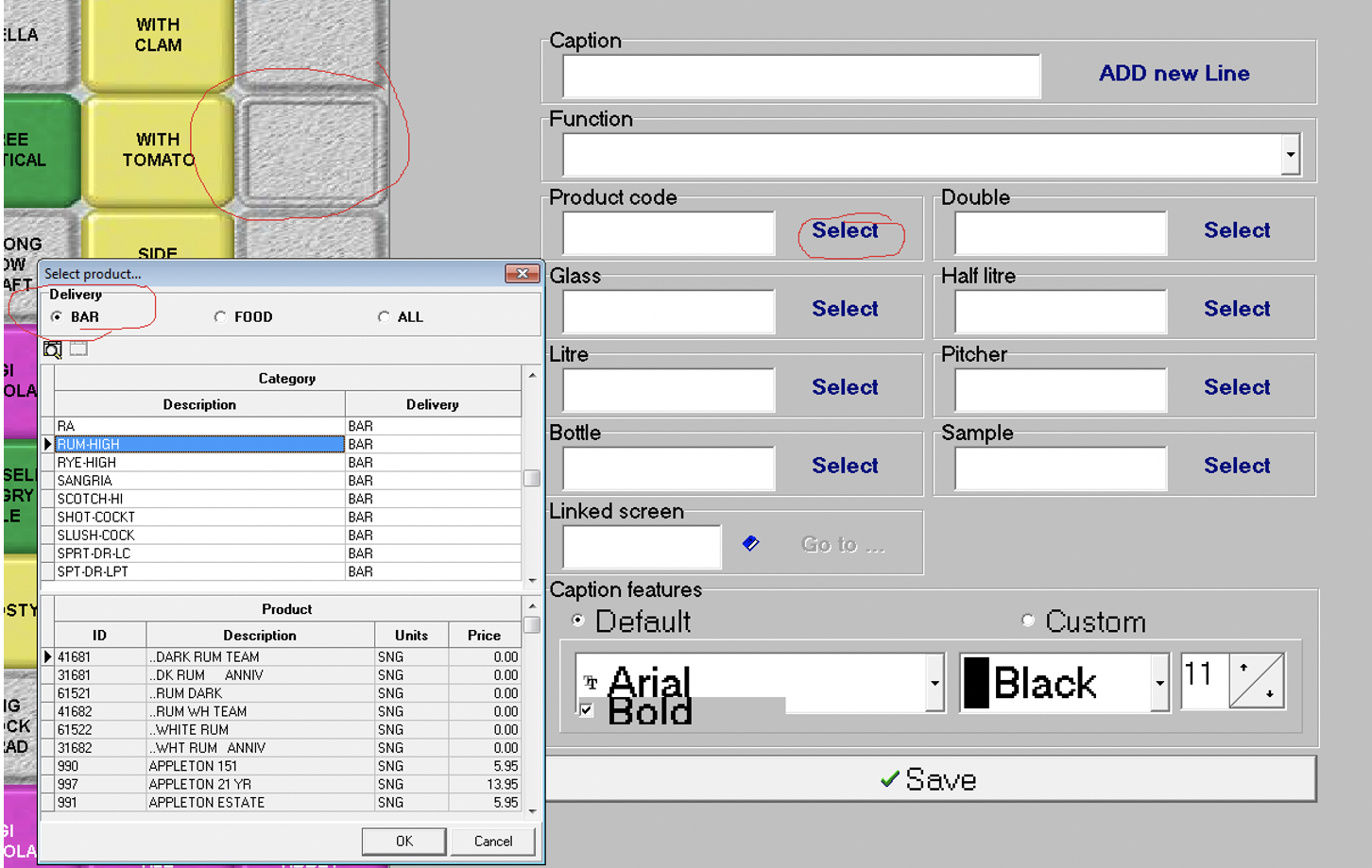
- Select Bar or Food group in the popup window
- Select Category on the upper window
- Select item on the bottom window and click OK
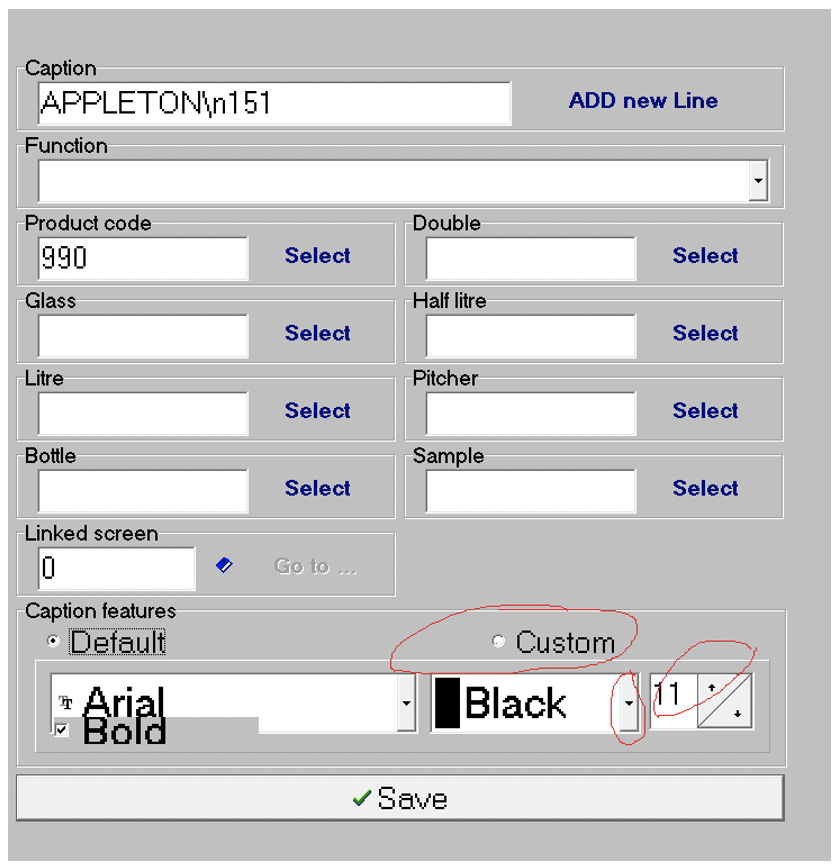
- On the right panel select Custom if you want to change the default font and size for button caption and click Save
- To use several lines for the description, use the Add new line button
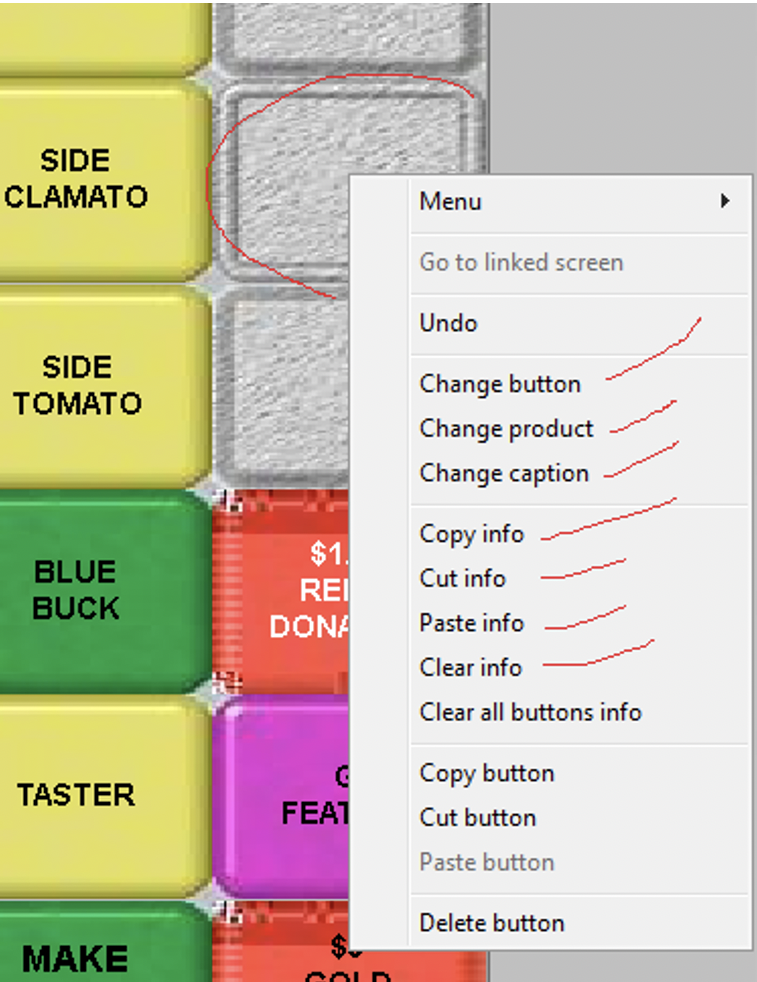
- To change the colour or size of the button, right click on selected button as seen below:
- To have screen changes in effect in Front End program:
- Click on Functions and Refresh Screen
- Or exit the program and start it again