PUB POS Modifiers
PUB POS – Modifiers Setup & Management
Accessing Modifiers
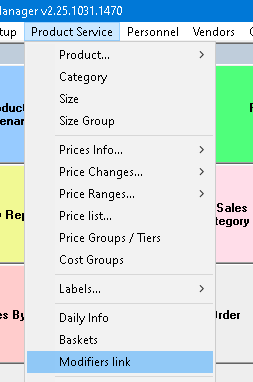
In PUB Manager, open modifiers using one of the following methods:
- Navigate to Product Service → Modifiers
- Or click an existing Modifiers speed button (if configured)
Screen Layout Overview
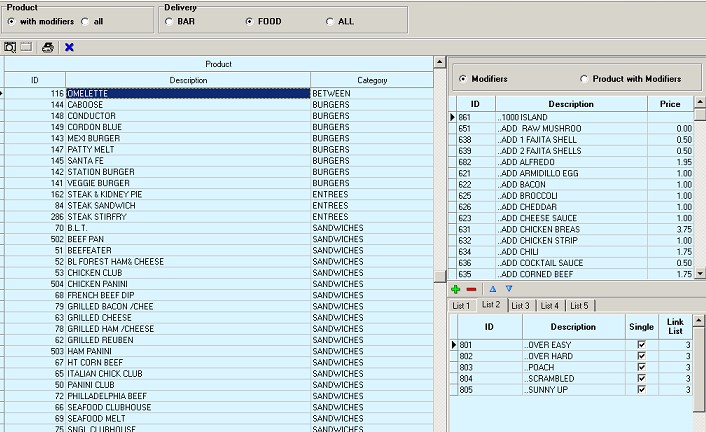
Left Window – Product Selection
The left window controls which products are being worked on. You can filter products using:
- Products with Modifiers – shows only items that already have modifiers
- All Products – shows all products
- Products by Delivery – filter by:
- Bar
- Food
- All
Common Use Cases
- Add modifiers to a new product
- Select All Products
- Choose Delivery: Bar or Food
- Edit or add modifiers to an existing product
- Select Products with Modifiers
- Choose the product you want to update
Right Top Window – Modifier Library
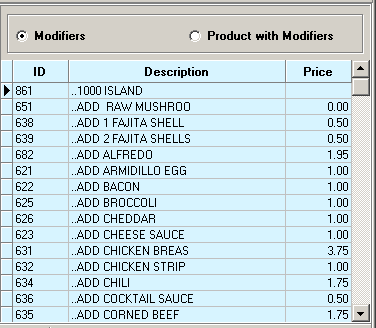
This window displays the available modifiers.
- Use the toggle to switch between:
- Modifiers
- Products with Modifiers
- The list will automatically filter based on the selected delivery type (Bar or Food).
- To link a modifier to a product:
- Double-click the modifieror
- Select it and click the + button in the bottom toolbar
Right Bottom Window – Product Modifiers
This window shows the modifiers assigned to the selected product.
Key Features
- Supports up to 5 modifier lists (tabs)
- Displays modifiers linked to the product highlighted in the left window
Toolbar Buttons
- + – Add selected modifier from the top-right window
- – – Remove selected modifier
- Up Arrow – Move modifier up in the list
- Down Arrow – Move modifier down in the list
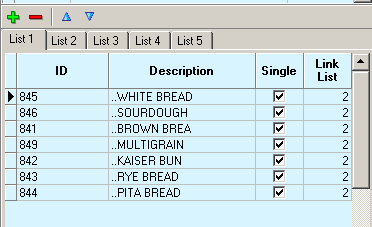
Creating or Managing Modifier Lists
Adding a New Modifier List
- In the Left Window, click All Products
- Select the product that requires forced modifiers
- In the Right Top Window:
- Select the modifier
- Double-click it or click + to add it to the bottom window
Configuring Forced Modifiers
In the Right Bottom Window:
- Check Single if the product uses only one forced modifier list
- Use Link List when the product has multiple modifier lists
- Example: enter
2to link to Modifier List 2
- Example: enter
- Repeat setup for List 2, 3, etc. as required
Tips & Best Practices
- Always confirm the Delivery type (Bar/Food) before adding modifiers
- Use Products with Modifiers to quickly review existing setups
- Keep modifier lists organized using Up/Down arrows for better POS flow
- Use Single only when no additional modifier lists are required