Promo Codes for E-commerce
This guide explains how Promo Codes work in Barnet E-commerce, how to set them up correctly, and common reasons why a promo code may not apply as expected.
Where Promo Codes Are Managed
Promo Codes are created and maintained in the Barnet Network under:
Online Store → E-commerce Setup → Promo Codes
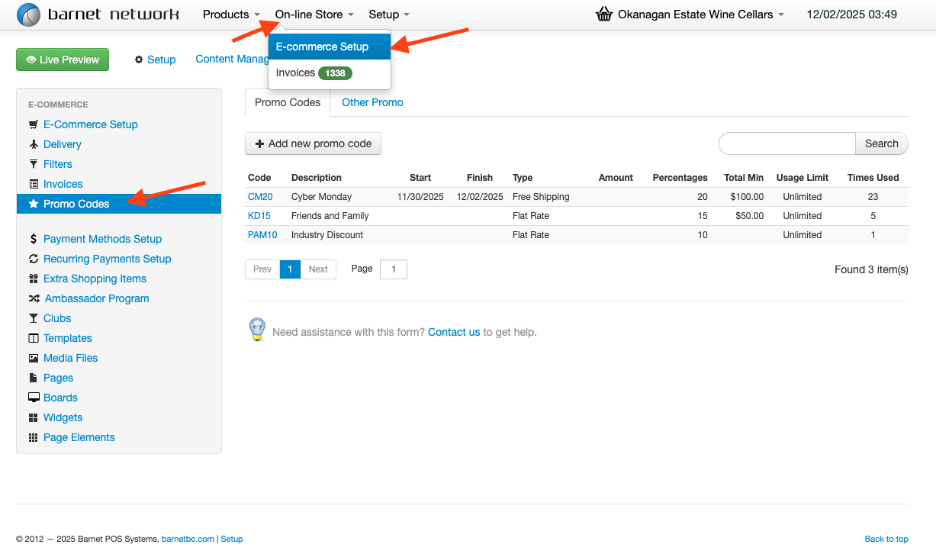
Promo Code Setup – Field Definitions
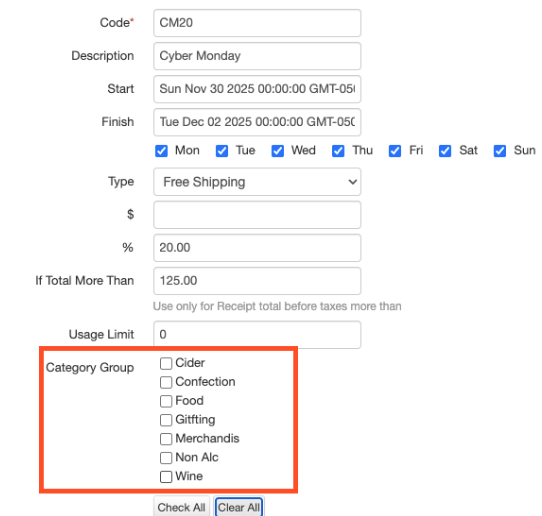
When creating or editing a Promo Code, you will see the following fields:
- Code - What customers type into the website checkout.
- Description - Internal name for the promotion or campaign.
- Start/Finish Dates - Defines the active date range for the promo.
- Days of the Week - Days the promo can be used (within the range).
- Promotion Value
- Fixed dollar amount (e.g., $10 off), or
- Percentage discount (e.g., 10% off)
- Minimum Cart Value (Optional) Sets a minimum cart subtotal (before tax) required to use the code (e.g., $100 minimum).
- Usage Limit (Optional) Limits how many times the promo code can be used.
Category Groups – How They Actually Work
Apply Promo Code to All Items in the Store
- Do NOT check any Category Group boxes.
- Leaving all boxes unchecked automatically applies the promo code to all eligible items.
Apply Promo Code to Specific Categories Only
- Check only the category group(s) you want the promo to apply to.
- The promo will apply only to items in those selected groups.
Important Limitation
Even when category groups are selected correctly:
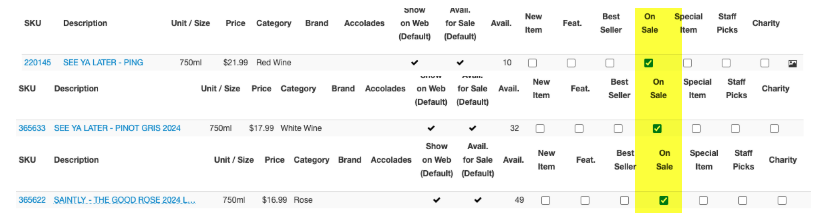
Promo Codes will only apply to items that are NOT marked as “On Sale.”
Sale items are always excluded from promo discounts.
“Use as Discount” Setting – What It Means
Inside the Promo Codes screen, you will see an option called “Use as Discount” under Other Promo settings.
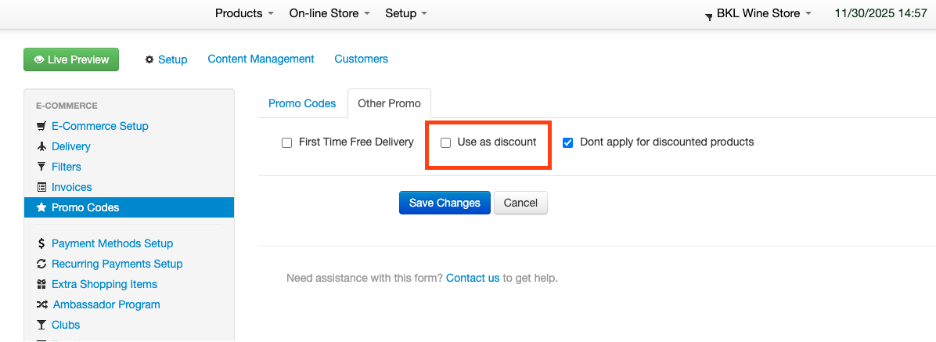
If Use as Discount is UNCHECKED *Not Recommended as it creates a new Category:
- The promo code appears as a separate negative line item in the cart.
- The cart shows a reduced Cart Total after the promo is applied.
- The invoice shows the promo as a separate discount line.
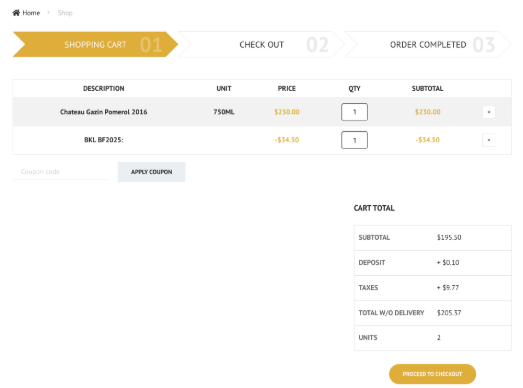
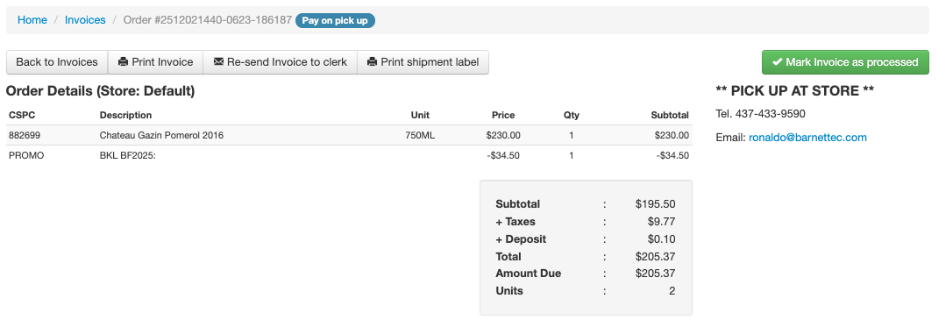
If Use as Discount is CHECKED (Recommended Setting):
- The promo is applied directly to the product price.
- Customers see the discounted product price in the cart.
- The invoice reflects discounted item pricing instead of a separate line.
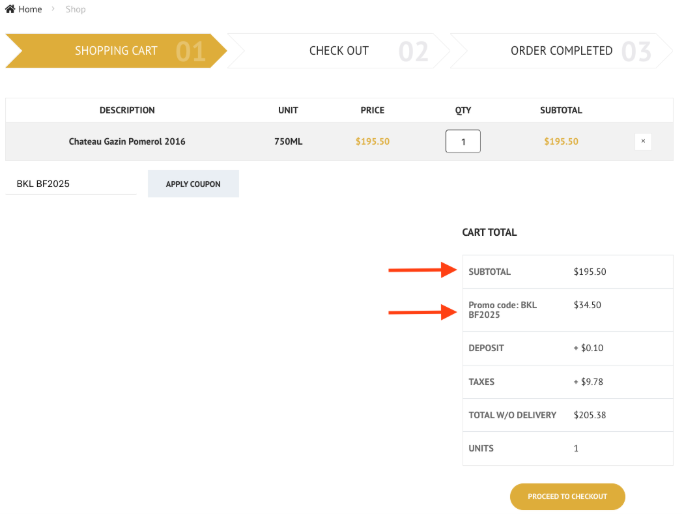
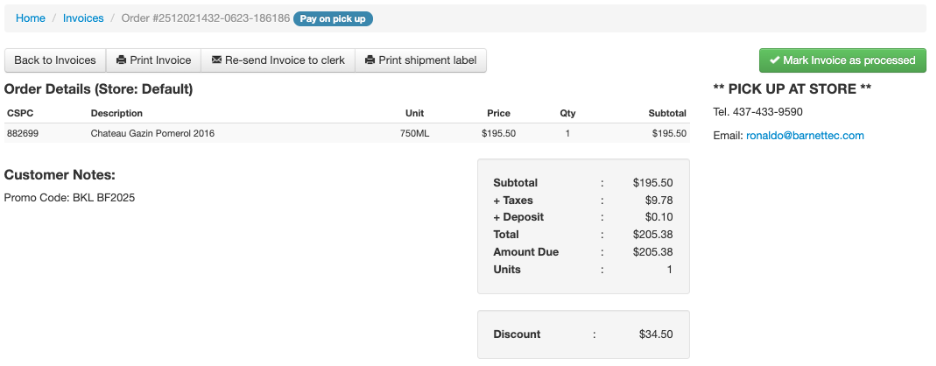
Why a Promo Code May Not Be Working
If a promo code is not applying, check the following:
- The item is already on sale
- The promo is limited to specific category groups
- The cart does not meet the minimum value
- The promo code has reached its usage limit
- The promo is outside its active date or day range
- The promo code was typed incorrectly by the customer
Best Practices
- Promo Codes are case-sensitive for customers when entered on the website.
- Avoid stacking sale pricing and promo codes—only one can apply.
- Leave category groups unchecked if the promo should apply store wide.
- Test promo codes with a sample order before launching a campaign.
- Clearly communicate promo rules to customers (sale exclusions, minimum spend, etc.).