Printing Labels
Barnet Support will install Avery Label on your computer and assist with creating label templates for your shelf prices.
You can print labels from Product Maintenance by selecting either individual SKUs or all SKUs with new prices.
Configure Your Browser for Easy File Saving
To streamline the label file download process:
- Change your browser settings to ask where to save each downloaded file.
- This will allow you to save directly into your Labels folder without searching for the file afterward.
Print Labels for All SKUs with New Prices
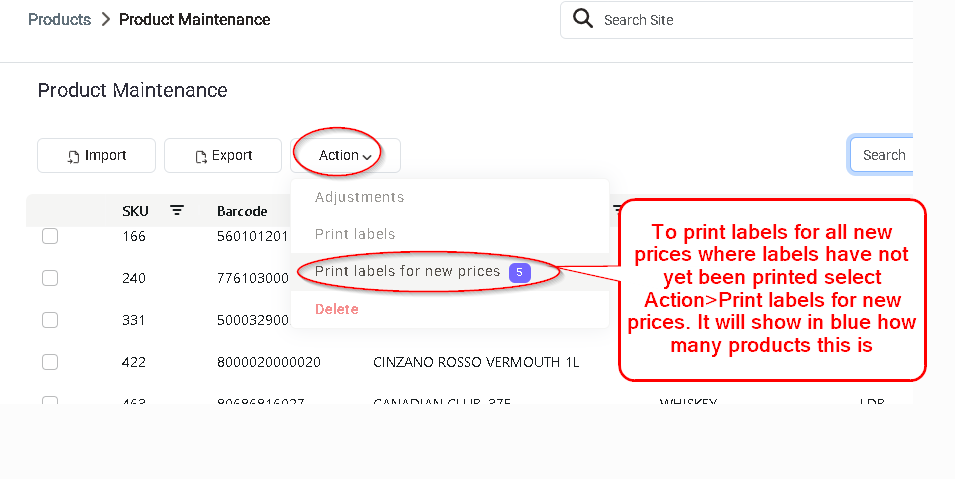
- In Product Maintenance, click Action > Print Labels for New Prices.
- A blue number will indicate how many SKUs have updated prices ready for label printing.
Print Labels for Selected SKUs
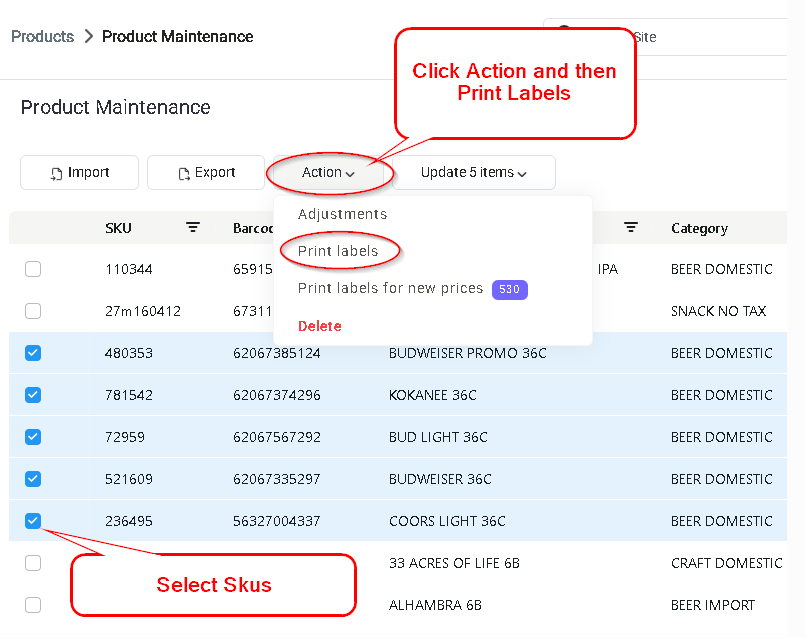
- Use the checkboxes to the left of each product to select individual SKUs.
- Click Action > Print Labels.
Save and Open the Label File
When prompted
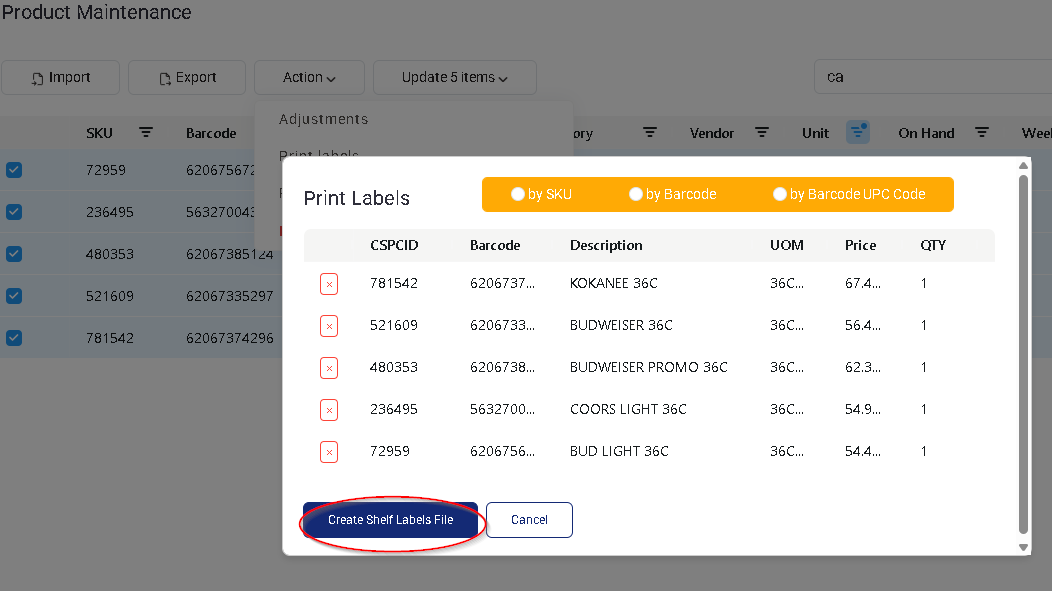
When prompted, click Print Shelf Label File.
Save the file to
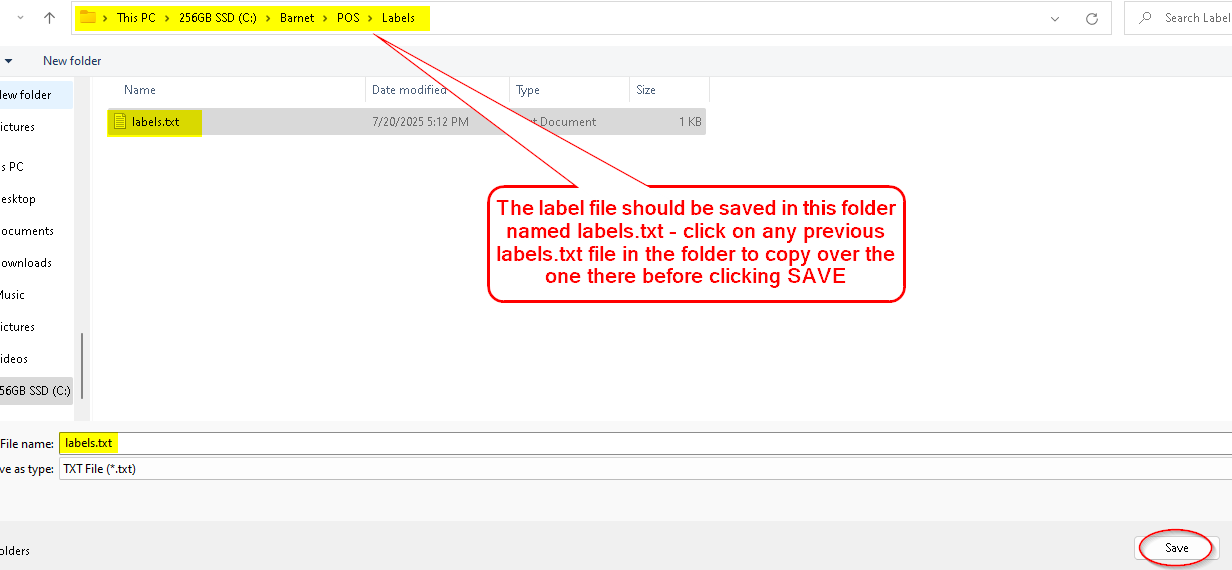
Save the file to:
C:\Barnet\POS\Labels
If prompted
If prompted, overwrite the existing labels.txt file.
⚠️ Important: The file must be saved as labels.txt — not labels(1).txt or any other variation.
confirm replacing the existing file
Click Yes to confirm replacing the existing file.

Open the File in Avery Labels
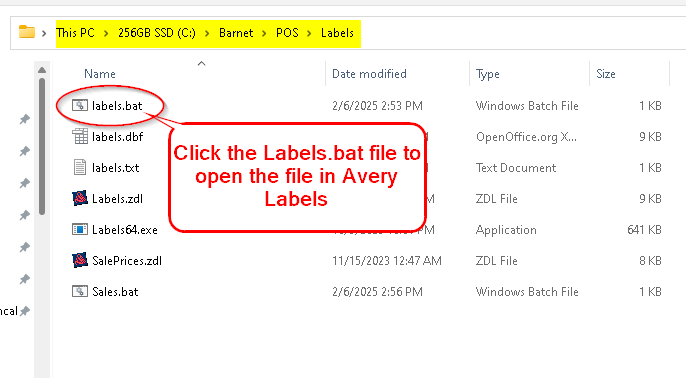
In the C:\Barnet\POS\Labels folder
In the C:\Barnet\POS\Labels folder, double-click labels.bat.
A window will open briefly
A window will open briefly, followed by the Avery program.
You can now
You can now:
- Click the Printer icon to print immediately, or
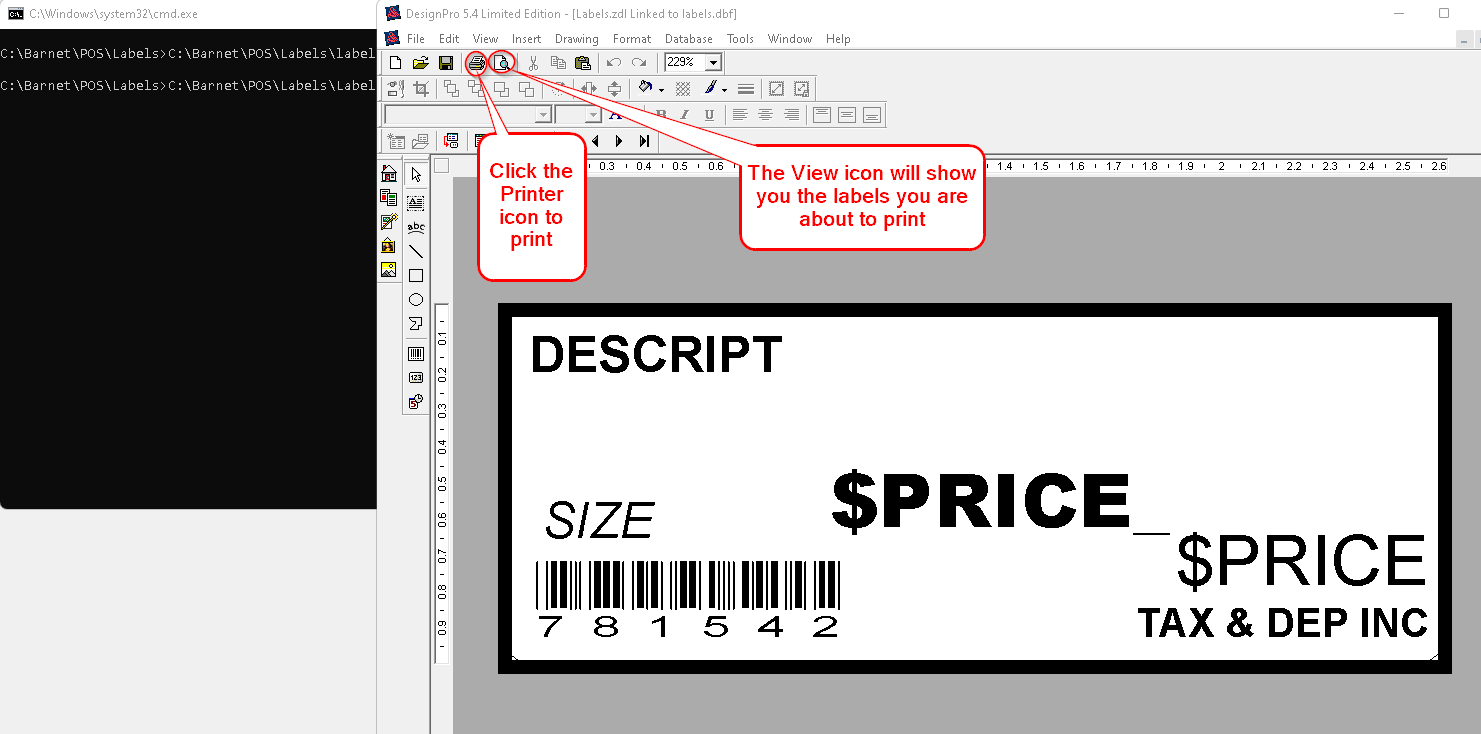
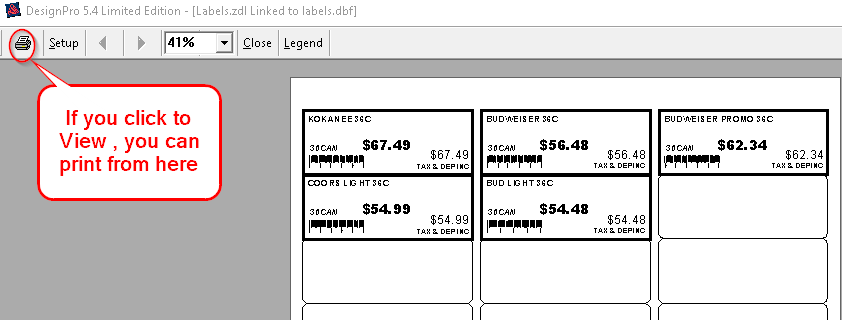
- Click the View icon to preview the labels first.
Optional: Adjust Start Position on Label Sheets
For sticky labels printed on sheets:
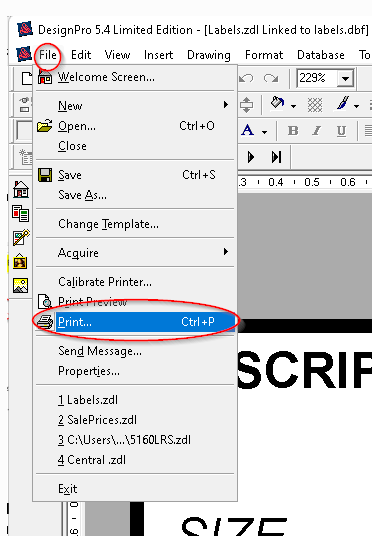
In the Avery program
In the Avery program, click File > Print, then Options.
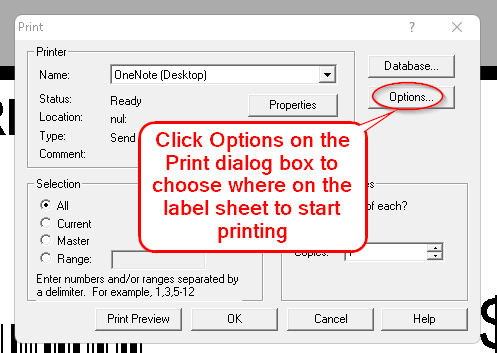
Click the cell that matches where you want to start printing
Click the cell that matches where you want to start printing on the label sheet.
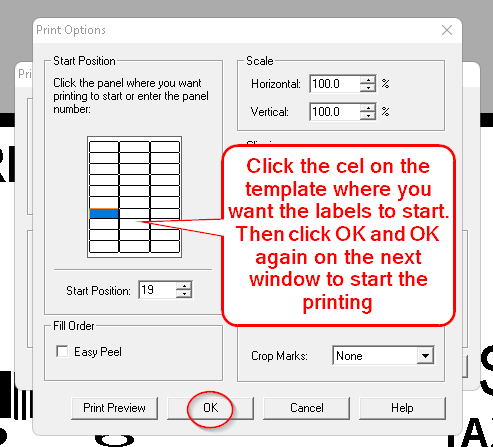
then begin printing
Press OK, then OK again to begin printing.