Discount and Pre-set Button Specific Day
Creating a Discount (or Bonus Points) Button Set to Work on Specific Days
This Tip Sheet covers creating a pre-set Discount or Bonus Points button that is set to function on specific days of the week. For example: Tuesday Senior’s Day Discount.
From POS Manager go to: Customers > Discount Groups
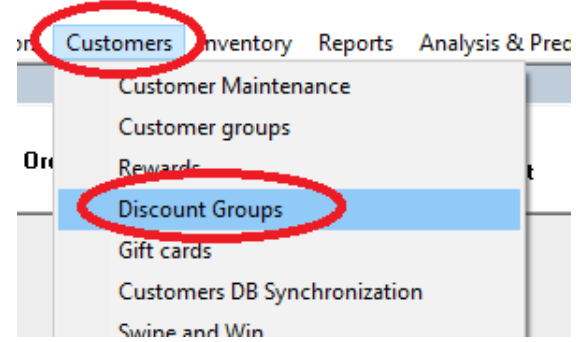
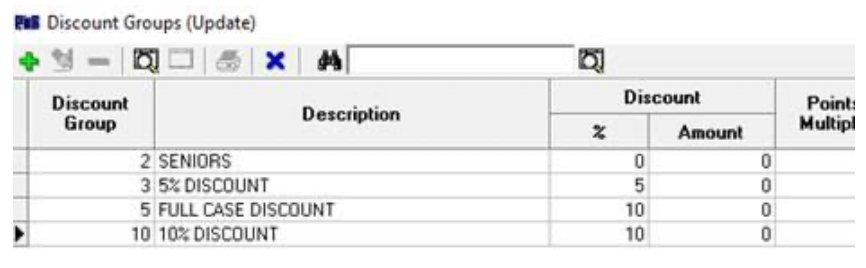
The Discount Group Editor will open
· Click on the + (Add) icon to create the Discount
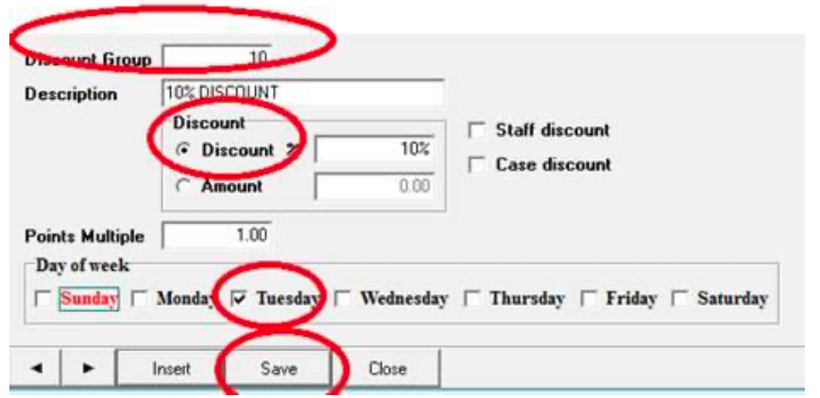
· Enter a Discount Group number
· Enter a group description
· Enter a Discount % or Amount
And/or
· for Points Bonus Day, enter Bonus Points Multiplier
· Tick the days the Discount/Bonus Points is valid
· Click Save and close the Discount Editor
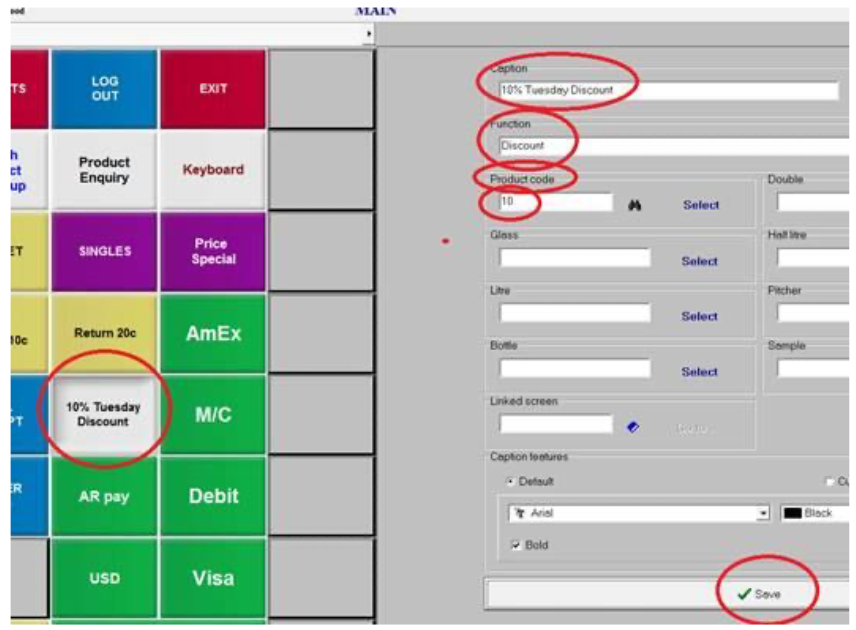
To create a pre-set button for the new Discount Group, open the till Screens Designer and select an unused button –
· Select the proper Function:
- Discount for a single item discount or
- Discount Fixed for all liquor in the purchase
· Enter the Discount group code under Product / code
· Enter a caption (description for the button’s use)
· Click Save
If the new button isn’t visible at the till, refresh the screens by signing out and signing back in.